11. Configuration and Screen
11.1 Configuration
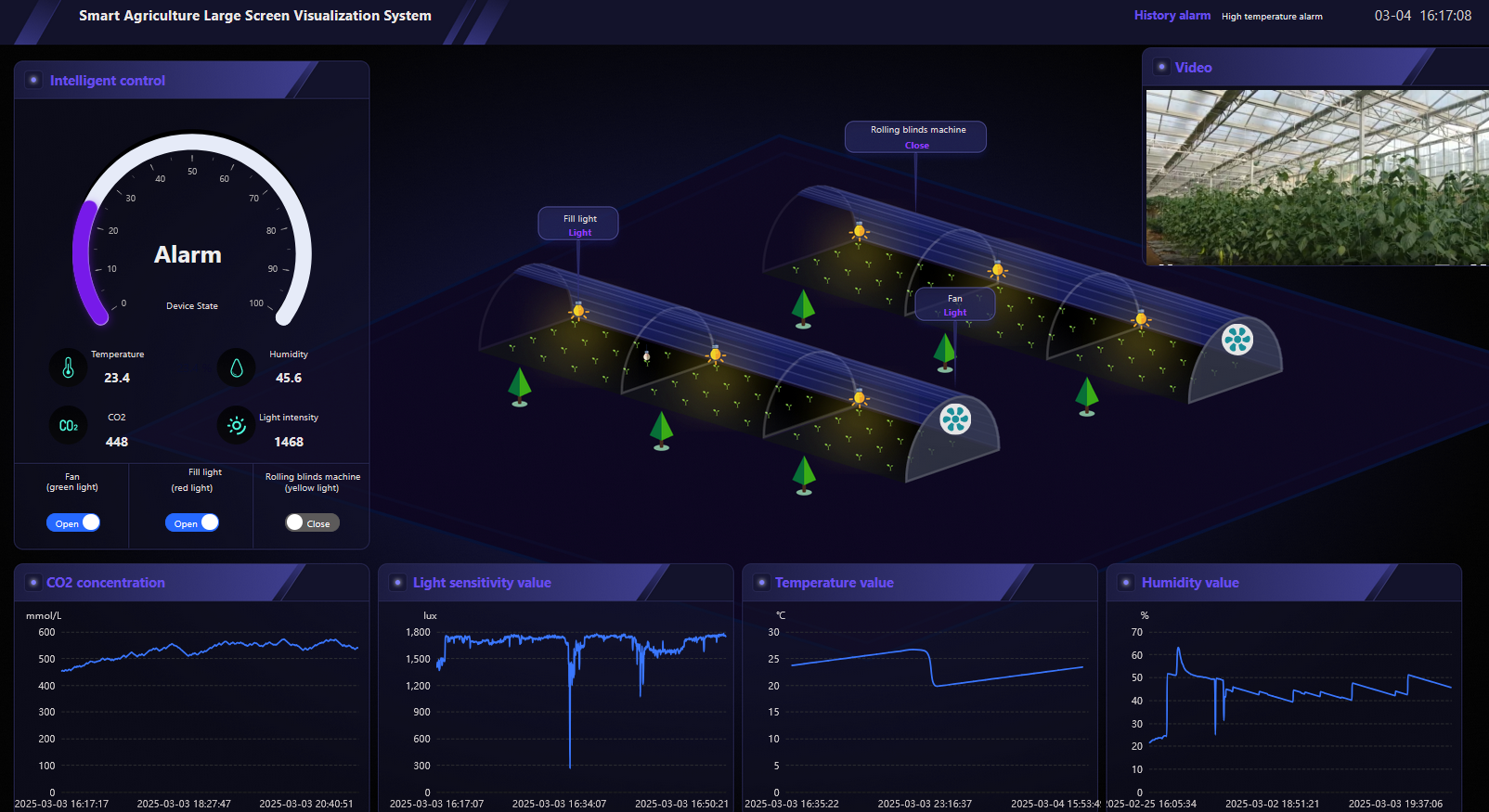
Configuration is a visual function module provided by the AMP. You can customize the drag-and-drop way to draw specific device information. For example, according to the actual device locations at the installation point, you can customize and drag-and-drop way to draw the installation point information to get an overview of the device data and remote control for the entire installation point on a single map. Configuration management consists of two modules:
Template: A standardized configuration can be created for a specific scenario, which can then be directly referenced and edited by other enterprises or scenarios to save time and effort in creating configurations.
Configuration: It is created for a one-time use with no reusability. When creating a configuration, a template can be referenced for editing and adjustments.
11.1.1 Vendor Creates Templates
Configuration templates are typically created by the vendor, and subordinate enterprises can use the templates created by the vendor when creating the configuration.
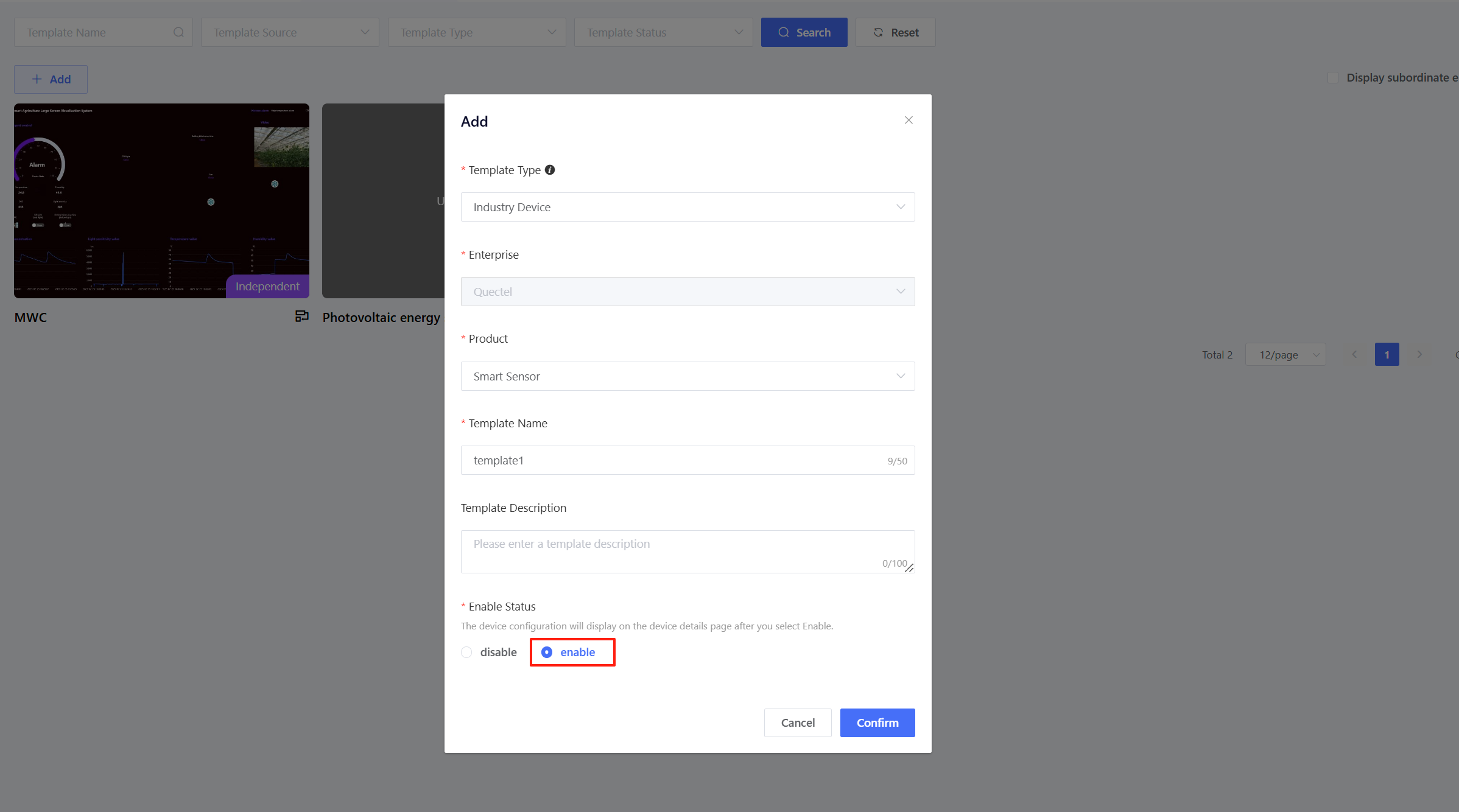
To create a template, the vendor should go to “Configuration” > “Template”, then click “Add” to create a template.
- Scene Template: This template is organized by installation points and displays configuration scenarios for a variety of product combinations at the installation point. The configuration information can be shown on the installation point details page.
- Global Template: This template is organized by the current enterprise and displays the configuration information for the entire enterprise.
- Device Template: This template is organized by product and displays the configuration information for a single product category. The configuration can be shown on the device details page.
Inheritance Permissions: When the permission is enabled, subordinate enterprises within the selected scope can use the template you created.
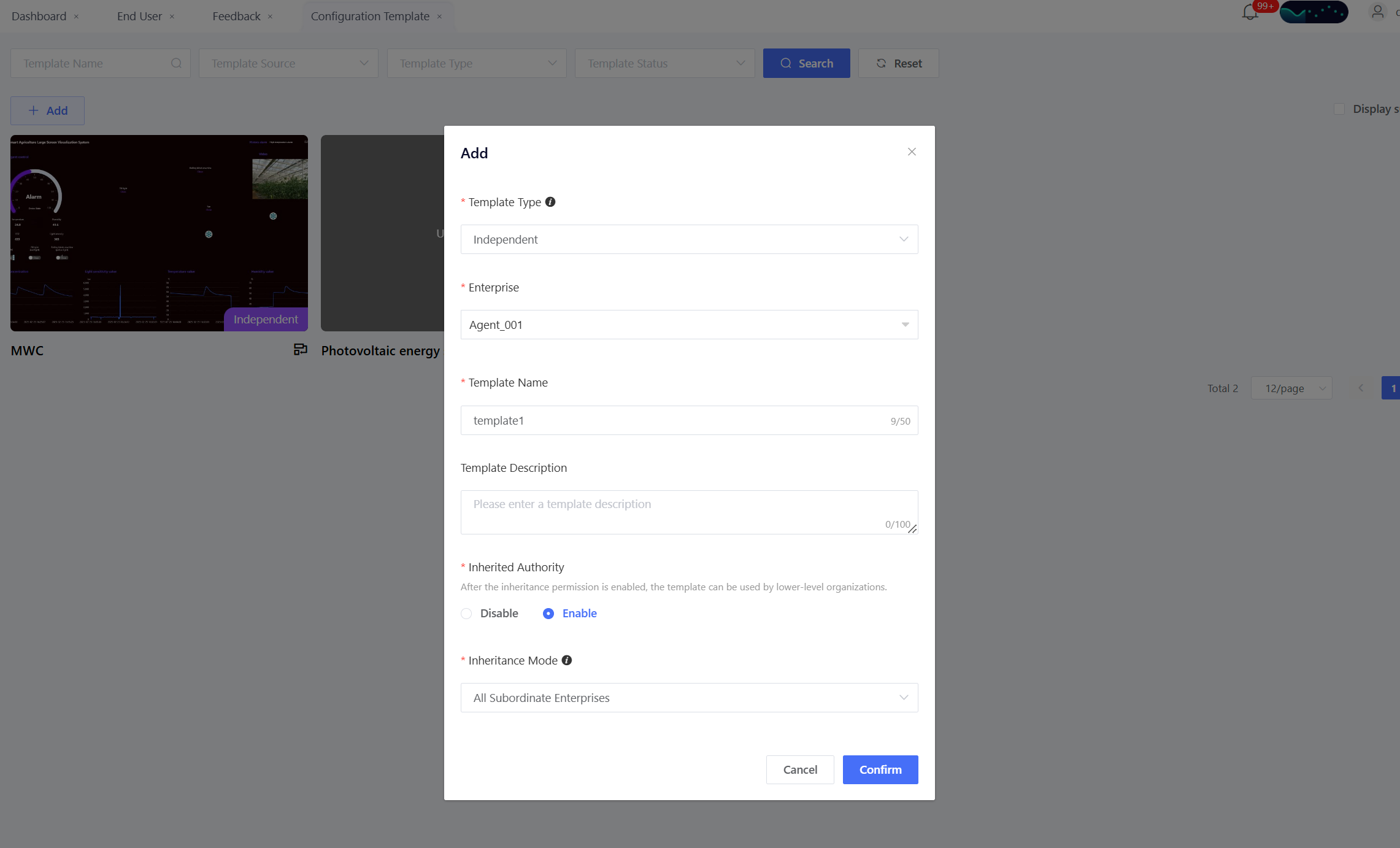
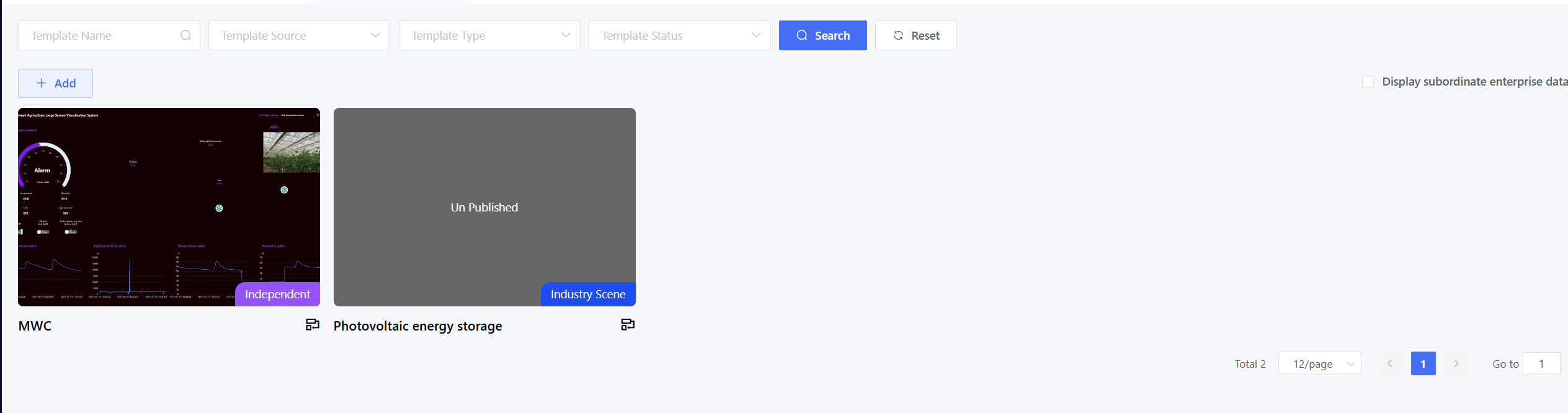
Once the template is created, you can view the template list. The template needs to be released before it can be selected and used by subordinate enterprises.
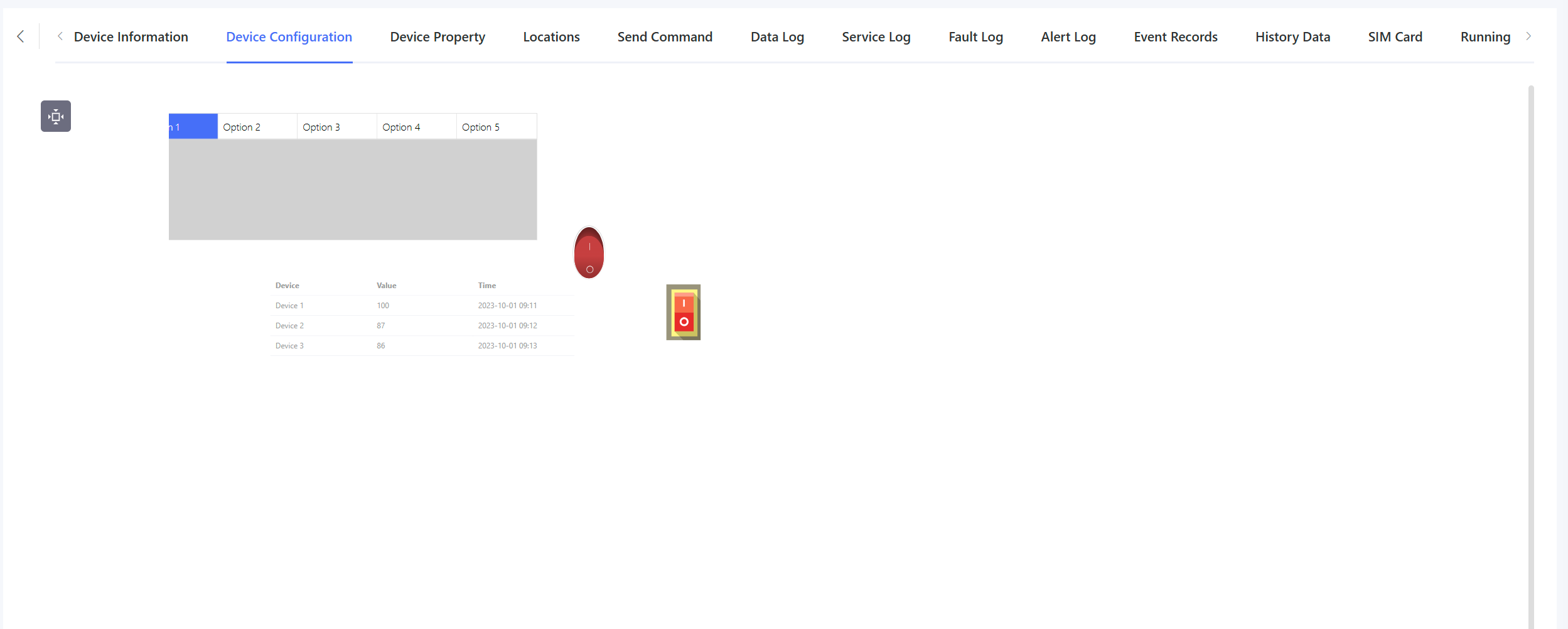
After the device template is set up, it can be directly displayed on the “Device Details” page without the need to create a separate device configuration.
11.1.2 Enterprise Creates Configurations
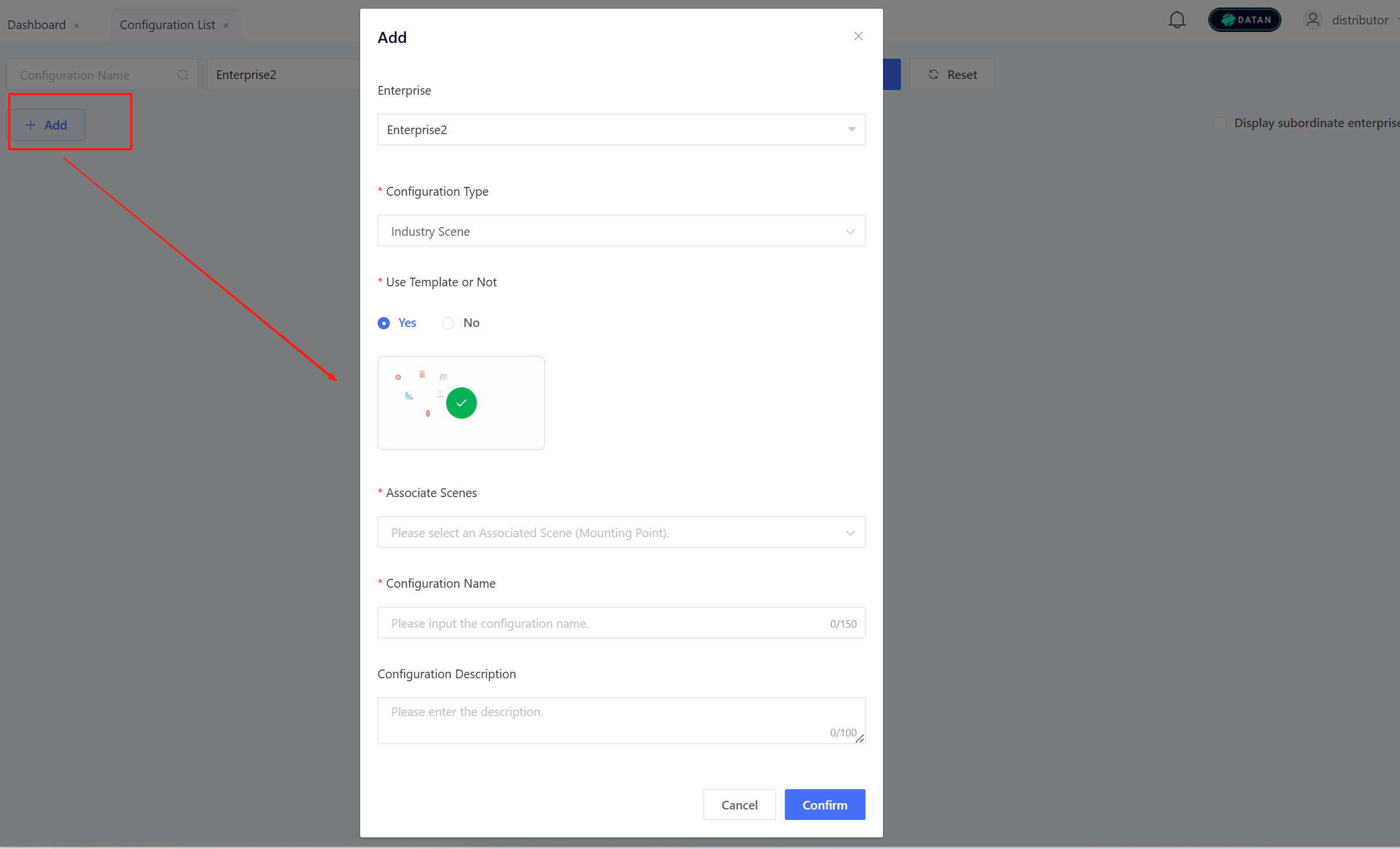
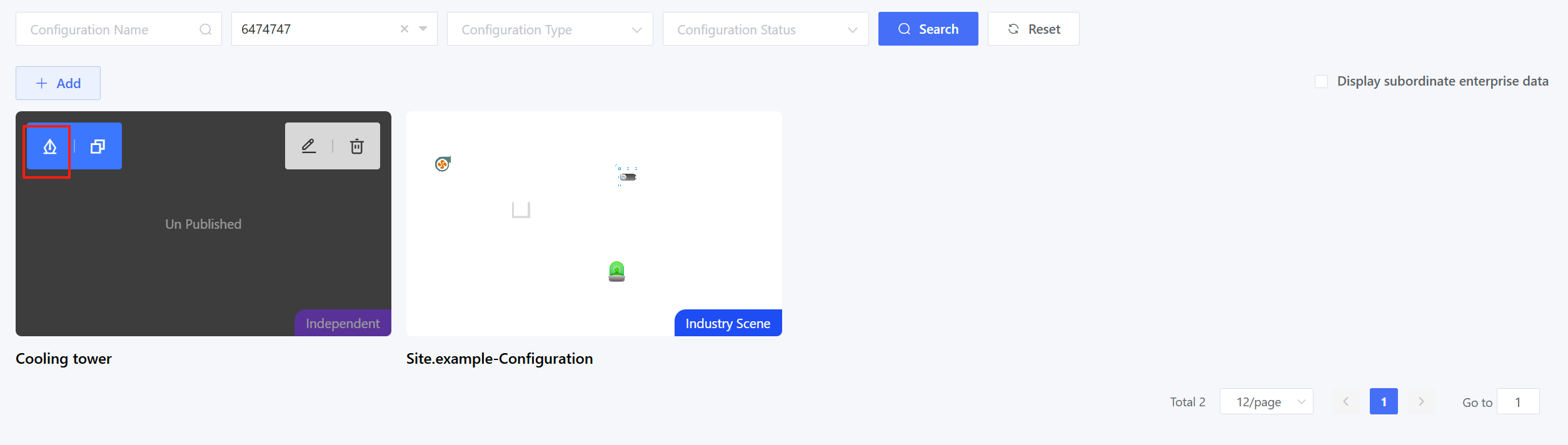
Navigate to the “Configuration” > “Configuration” page, then click “Add” to create a configuration.
- Scene Template: This template is organized by installation points and displays configuration scenarios for a variety of product combinations at the installation point. The configuration information can be shown on the installation point details page.
- Global Template: This template is organized by the current enterprise and displays the configuration information for the entire enterprise.
If the vendor has created templates available for subordinate enterprises, the enterprise can choose to use the template. After selecting the template, the vendor-designed template will be visible on the configuration design page.
11.1.3 Design Configuration
After successfully creating a template or configuration, click “Design” to enter the configuration design page.
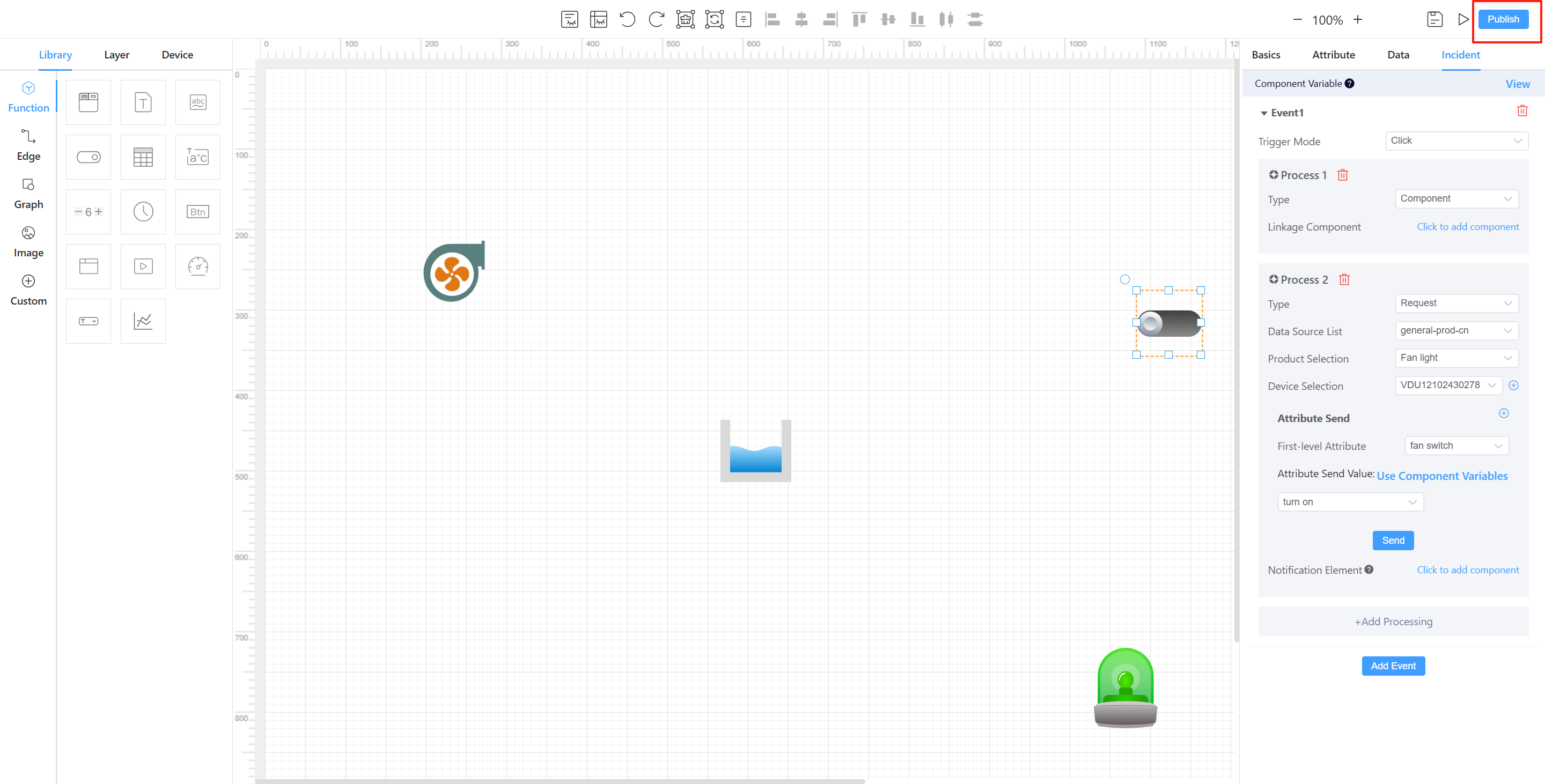
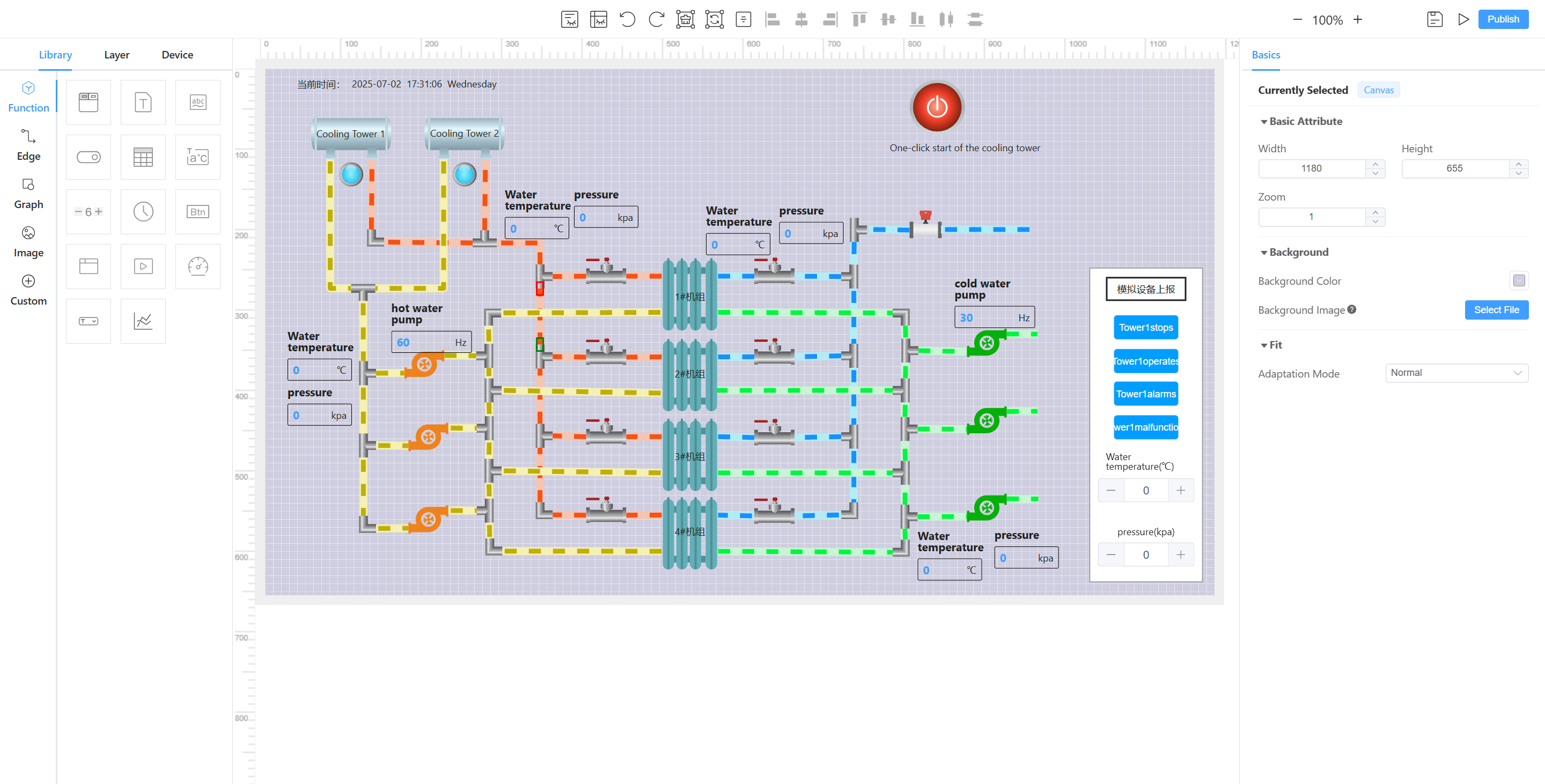
The canvas layout consists of three sections: the left side displays the available configuration components, the center is the drawing canvas where the configuration is created, and the right side shows the detailed configuration options for the selected components. The drawing process is as follows:
Step 1: Determine which content needs to be displayed and drag the corresponding components from the left side onto the canvas. Step 2: Click to select a component on the canvas, then configure it in detail on the right side
The available configuration components on the left include function, connection, graphic, figure, and custom elements.
Function Component: It is mainly used to display data from different types of devices. Static data is typically used to identify fixed fields, such as graphics or figure. For example, identifying the graphic as a switch. Dynamic data is generally used to display the dynamic TSL model data of the device.
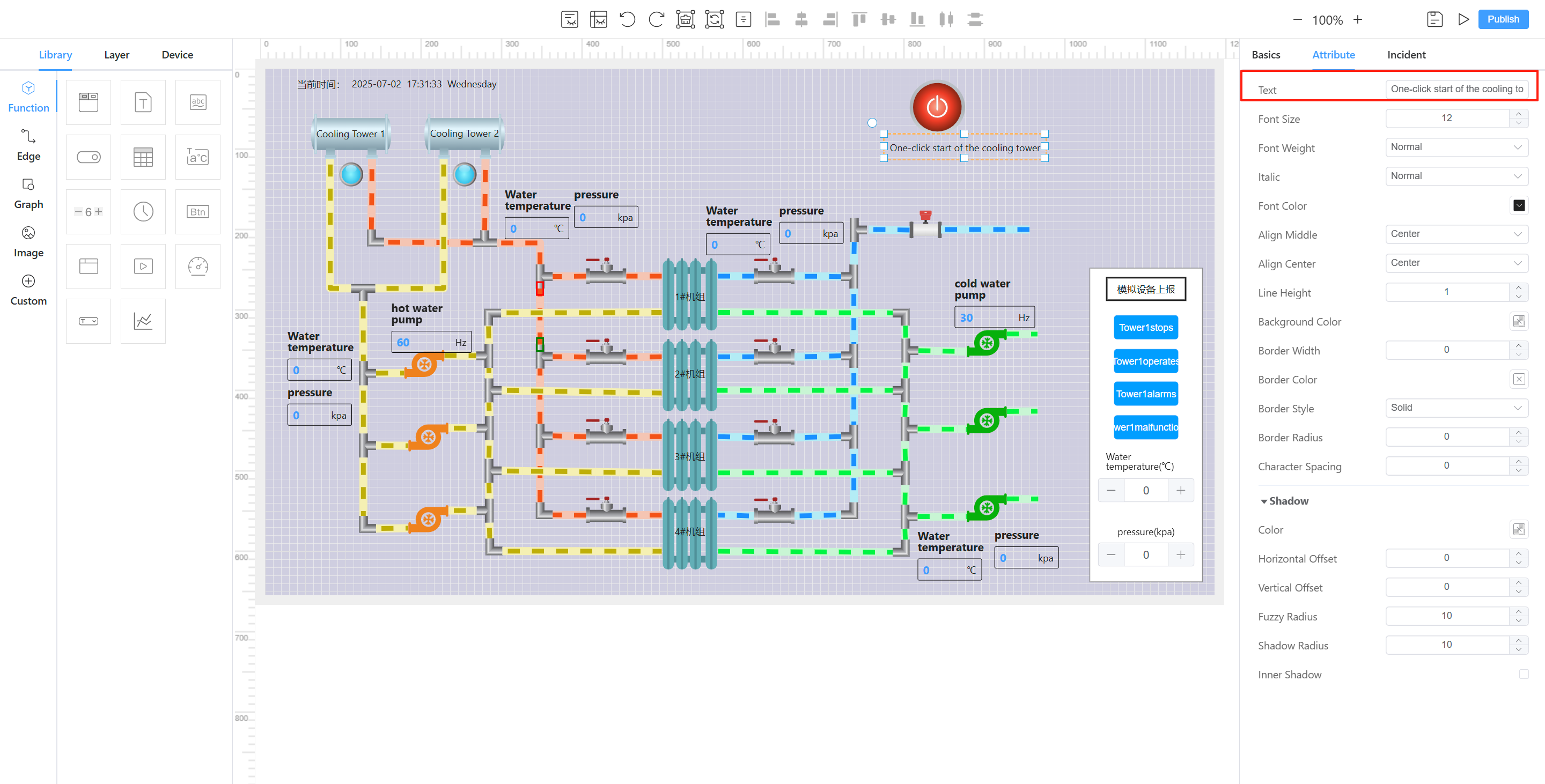
Connection: It is typically used to represent the physical connection between a device and a graphic. For example, in the diagram below, the connection between the cooling tower and the pump is represented by lines to indicate the water inlet and outlet.
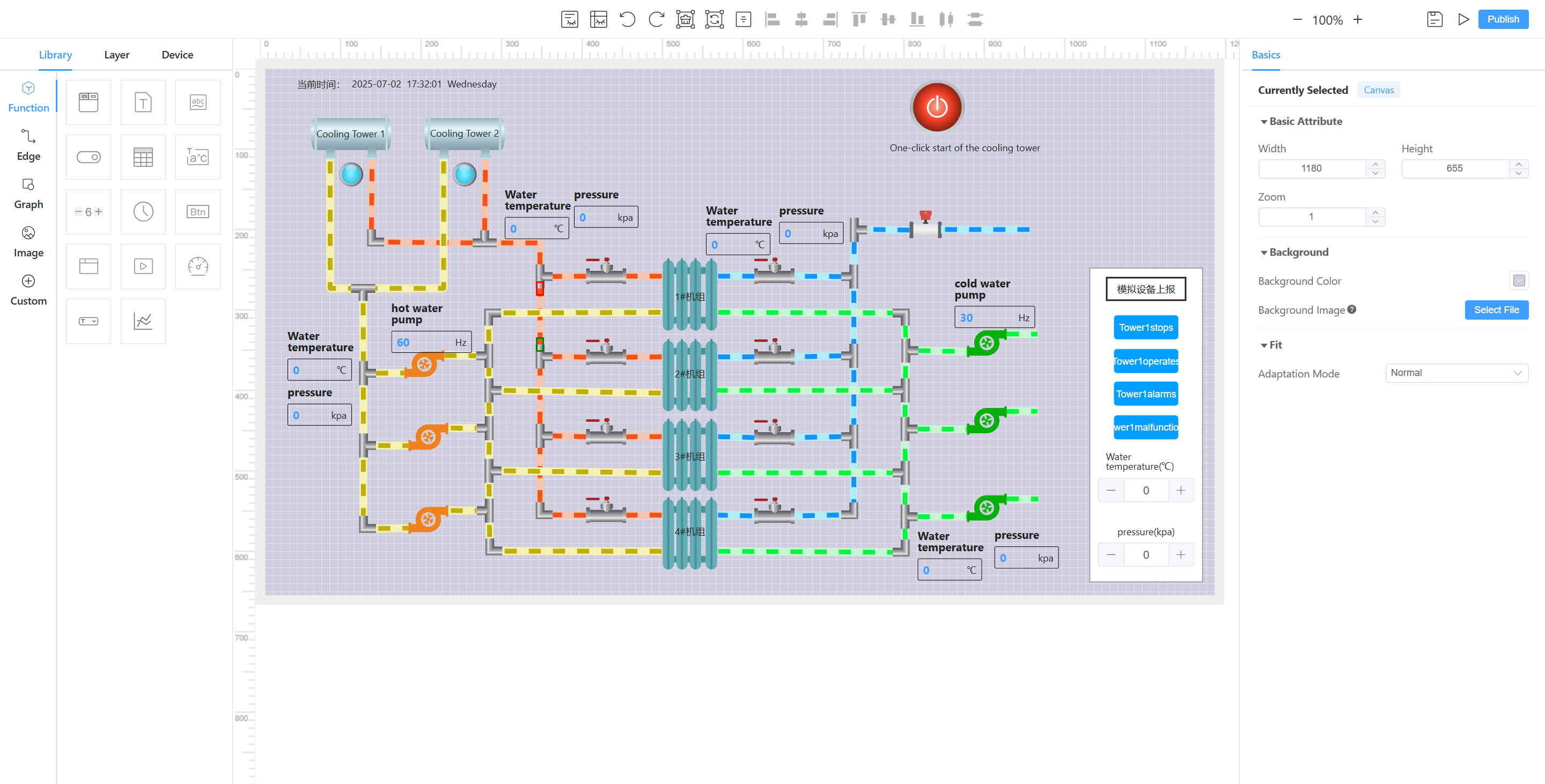
Graphic: It provides some realistic graphics to represent physical devices. The graphic can also display the corresponding device status through dynamic data, such as dynamically showing the status of a pump based on the percentage of water pump flow.
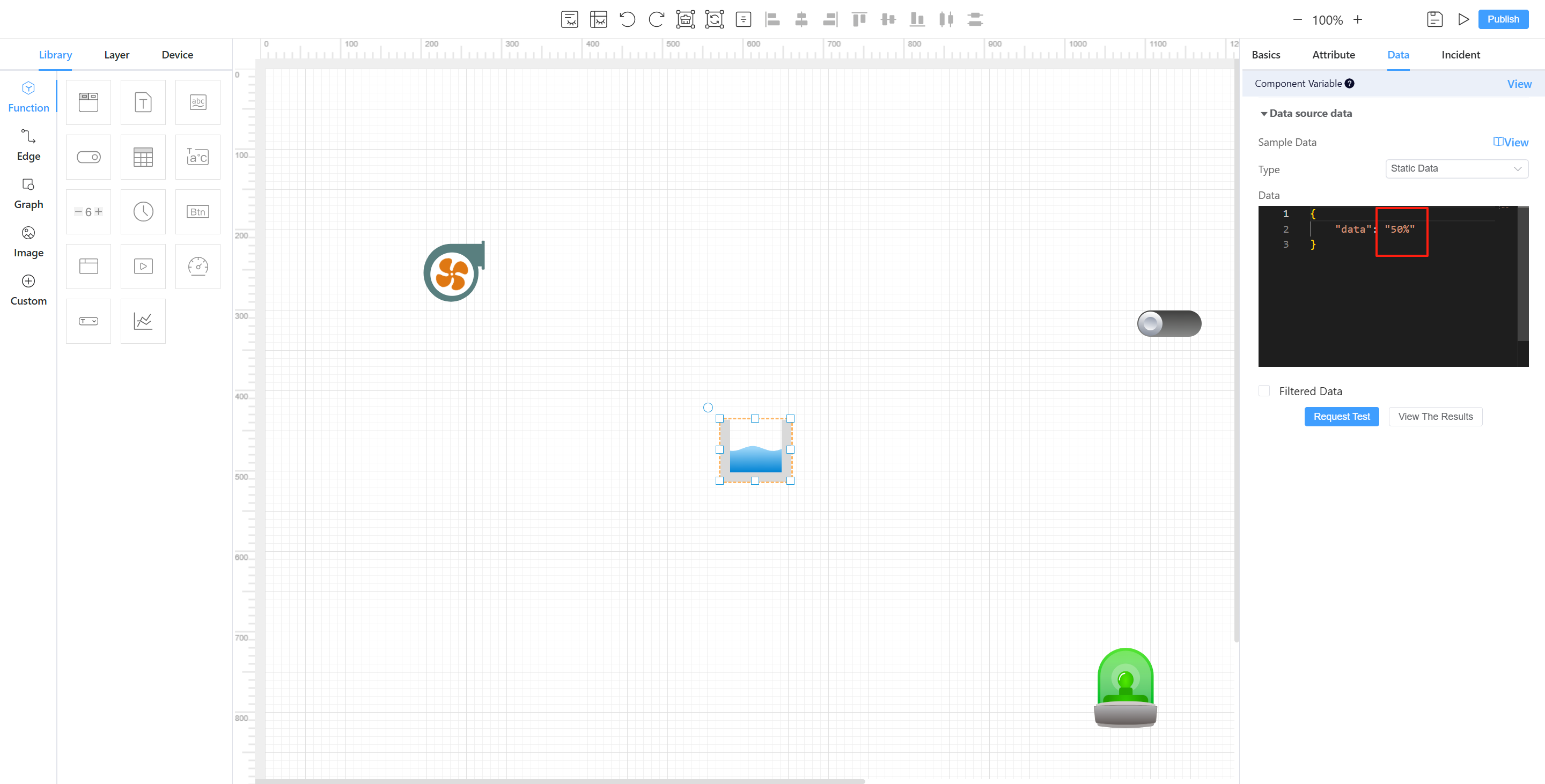
Figure: It provides status indicator figures. The figures can be used to display different visuals based on the device's status. For example, a green light image is shown when the device is on, and a red light image is shown when the device is off. Custom: If the above graphics and figures do not meet the display requirements, you can upload a custom figure for display.
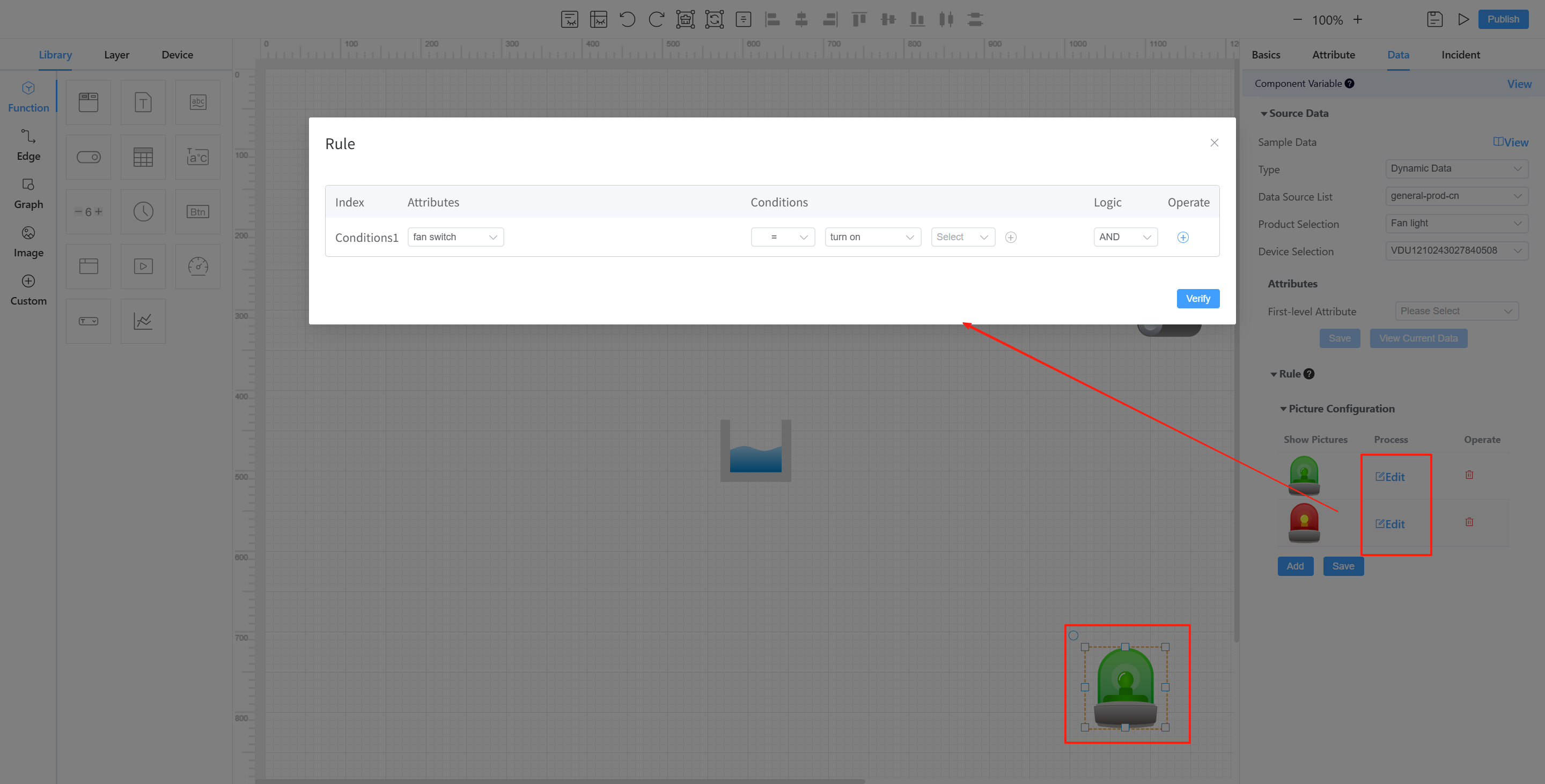
The component configuration on the right side includes the following:
- Basic: You can configure the component's name, angle, position, etc.
- Property: You can set the component's border, font, background, font size, color, and other visual properties.
- Data: You can configure the display of static data or dynamic device data.
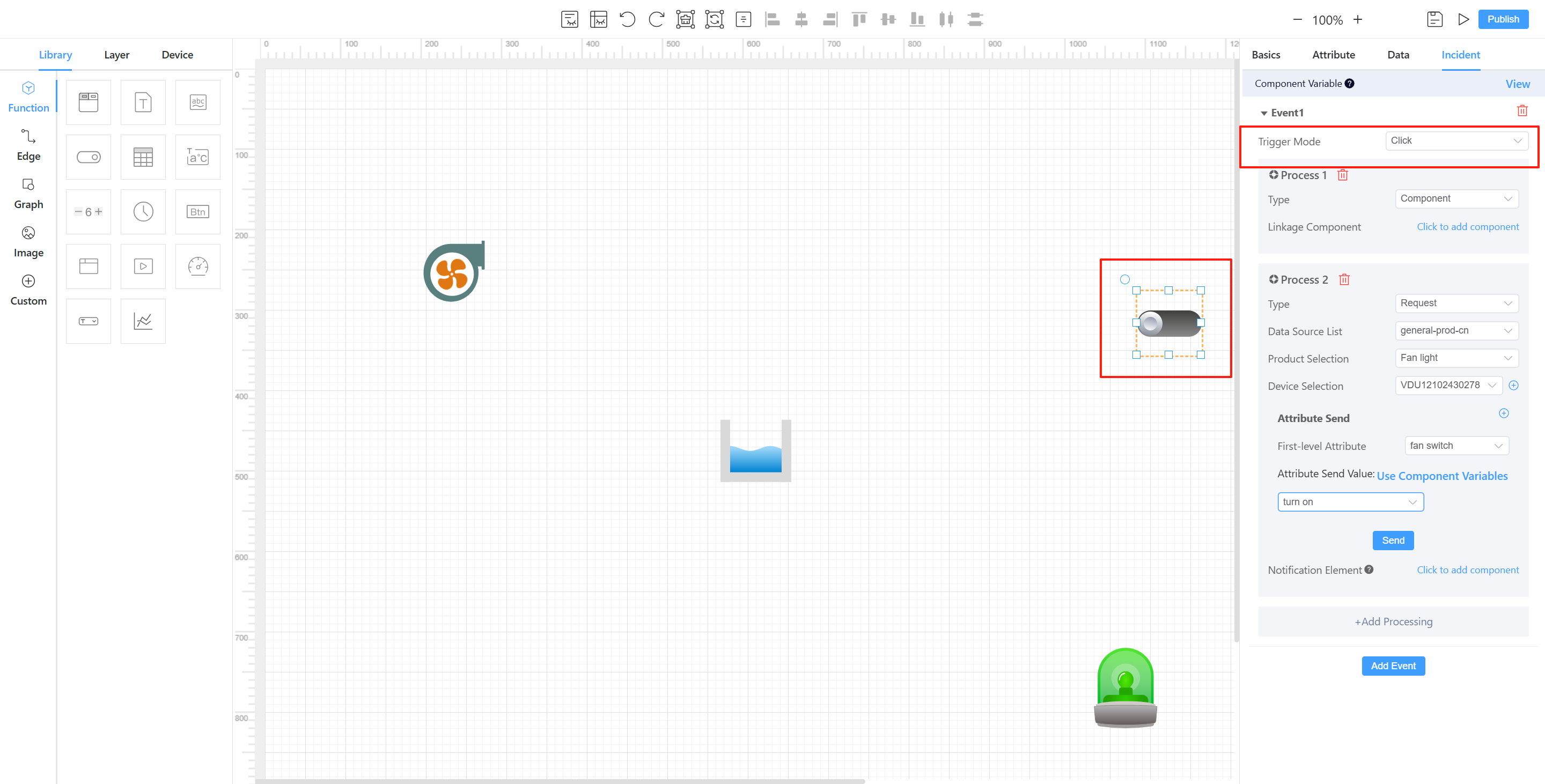
- Event: You can configure execution events after triggering the clicking or switching of the component, such as linking to another component or distributing a command to a device.
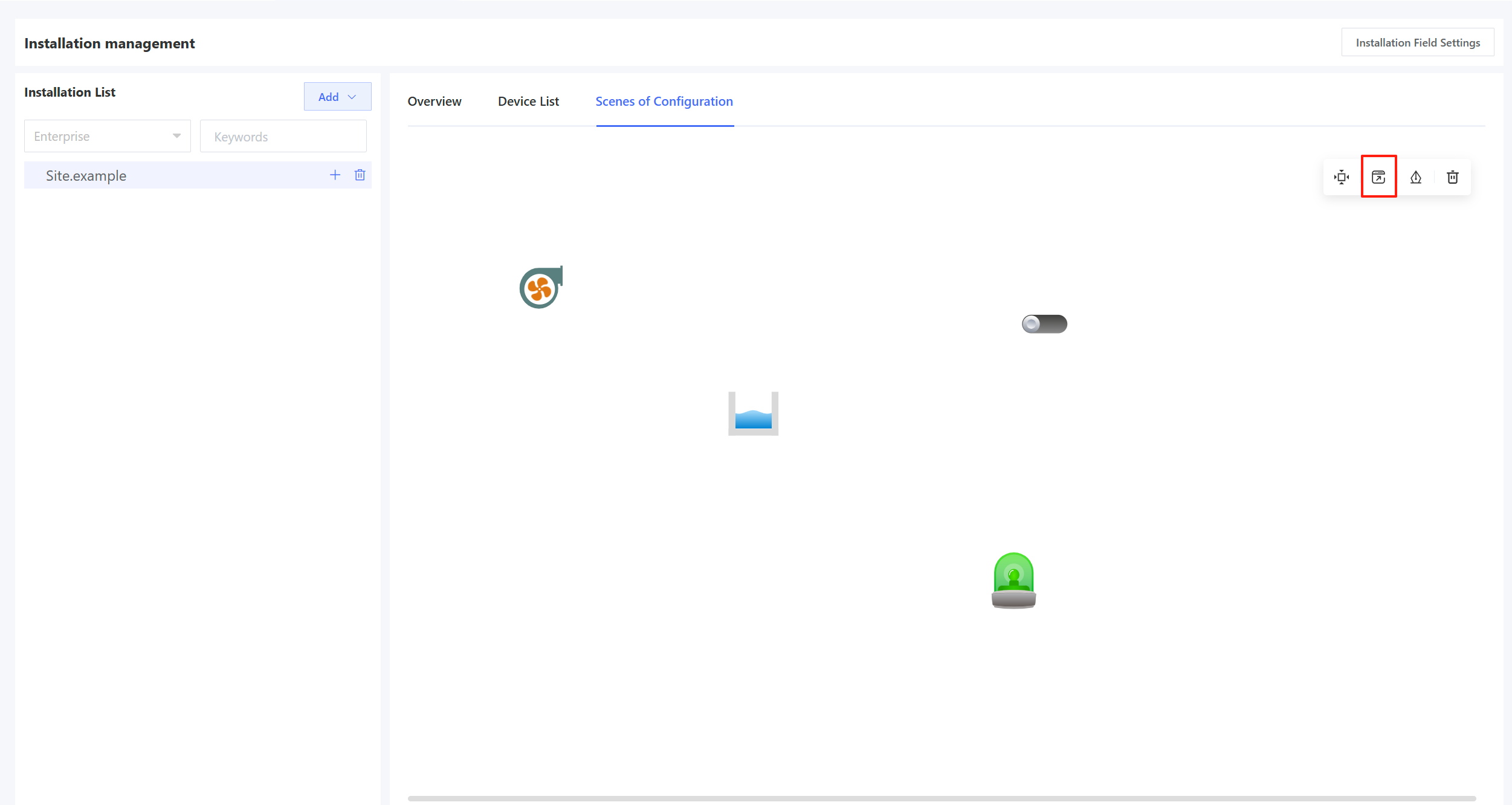
Once the scenario configuration is complete, click “Release” to display the configuration information in the installation point scenario. The configuration can also be viewed in full-screen mode for monitoring.