2.4 Create Sub-account
2.4.1 Add Role
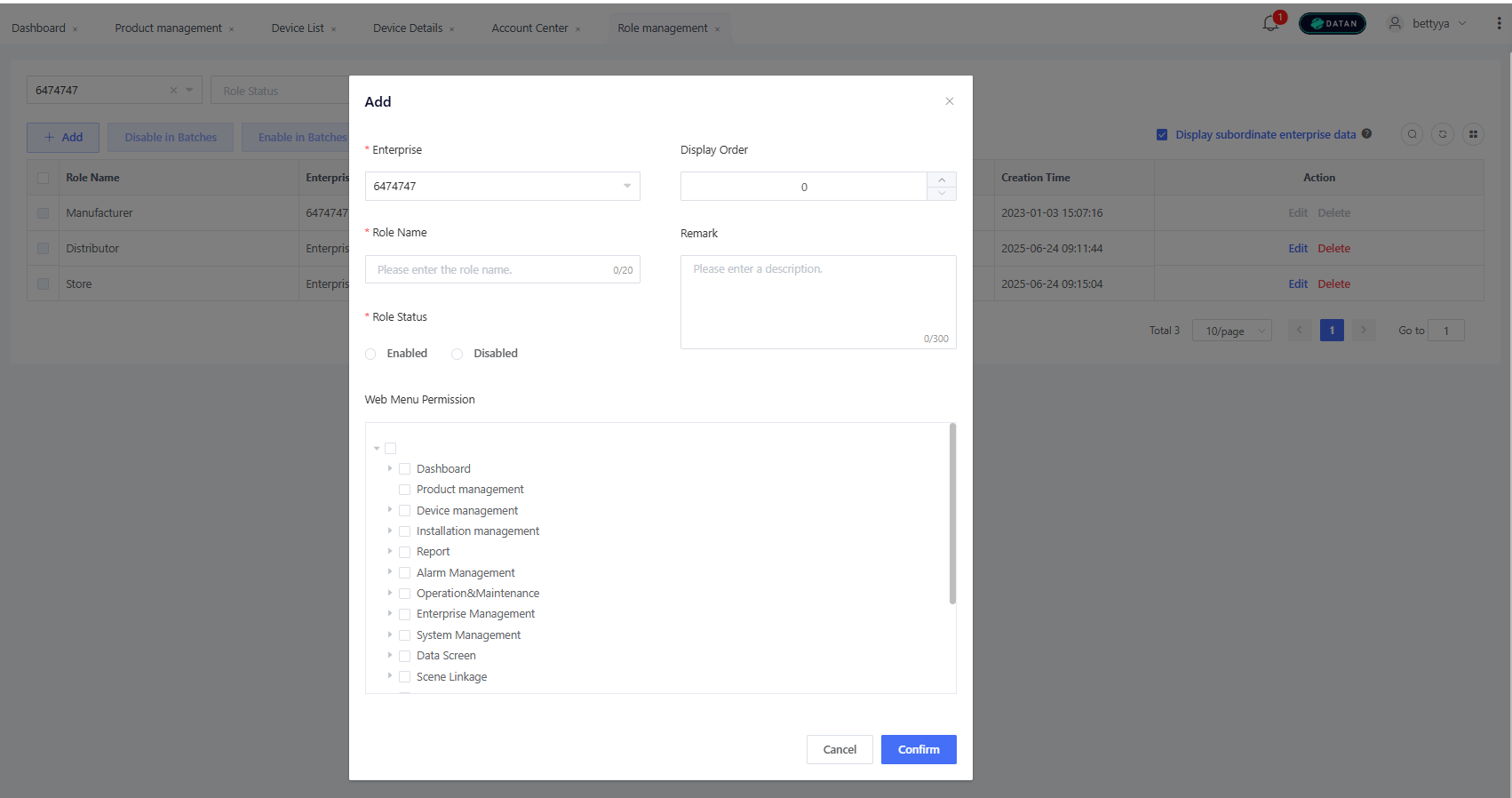
You must create a role before creating a sub-account, and the role is used to define the menu access permissions for the sub-account. Go to “Enterprise” > “Role”, click “Add”, and complete the information: “Role Name” (e.g., Administrator, Maintenance technician, Installation personnel), “Role Status” (default: “Enabled”; can be set to “Disabled” if no longer used), and “Web Menu Permissions” (different roles can have different permission levels based on job responsibilities).
2.4.2 Add User
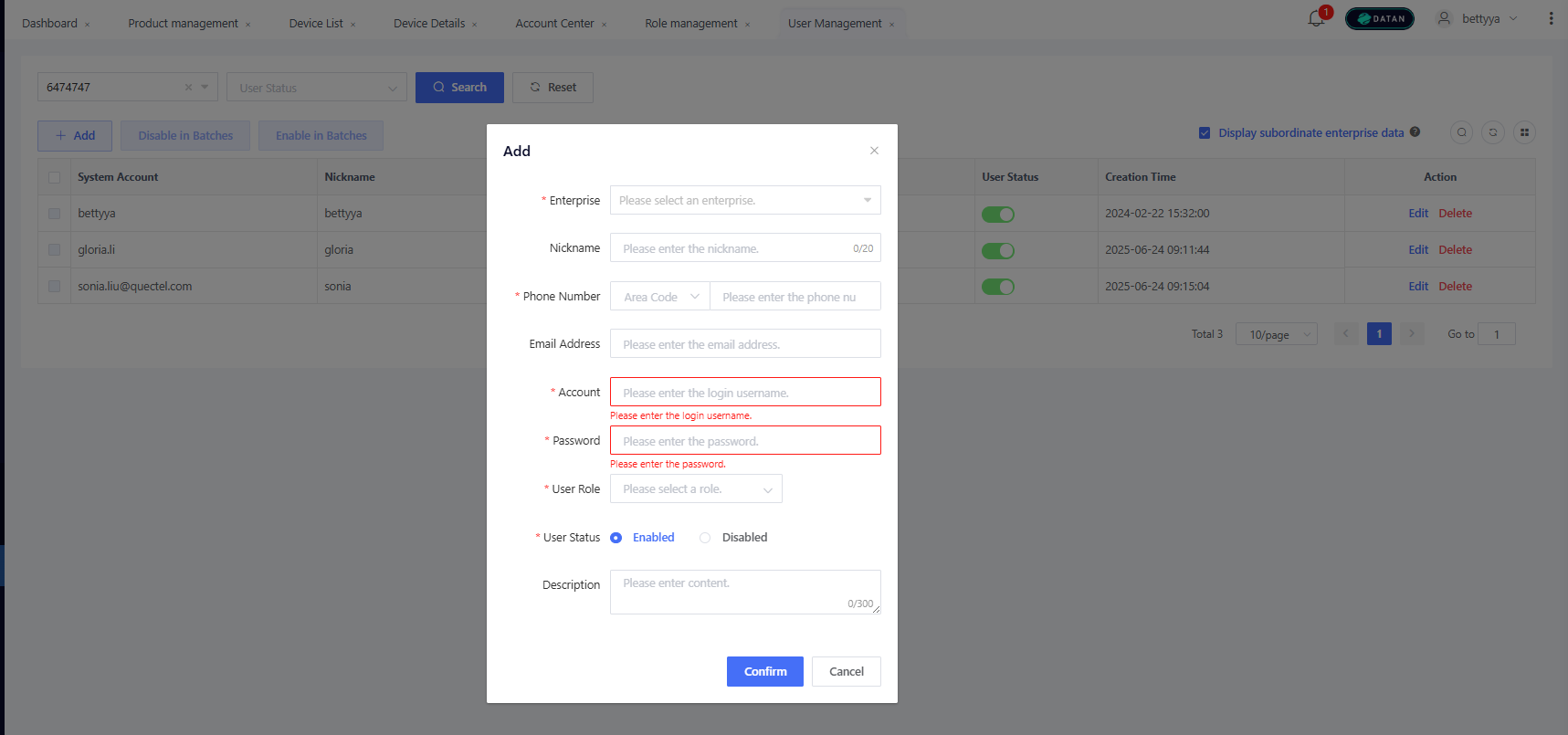
Go to “Enterprise” > “User”, click “Add”, and complete the information. Enterprise: Select the enterprise to which the user belongs. Upper-level enterprises can create sub-accounts for lower-level enterprises. Nickname: Name of the user (e.g., John, Lucy). Phone Number: Area code + phone number Email Address: Optional. If both phone number and email address are provided, password recovery will prioritize email notifications. Account: Unique login identifier with 6-150 characters in length. An account may contain letters, digits, or characters (.-_@) and cannot start or end with a special character. User Role: A role created in the previous step to assign menu access permissions. User Status: Default to “Enabled”; can be set to “Disabled” if the user is no longer used.