3.4 Action Settings
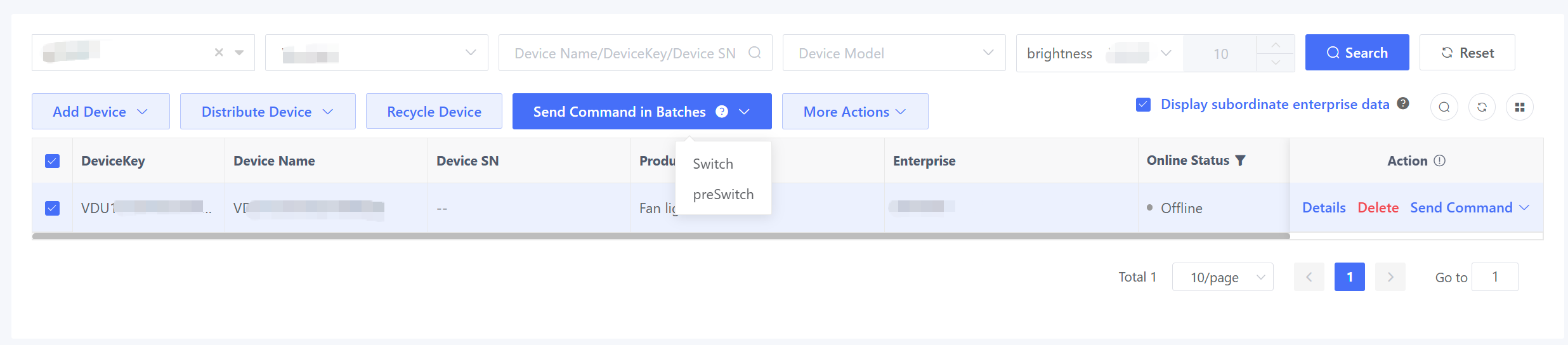
This option enables property/service command sending from the device list (e.g., fan switch).
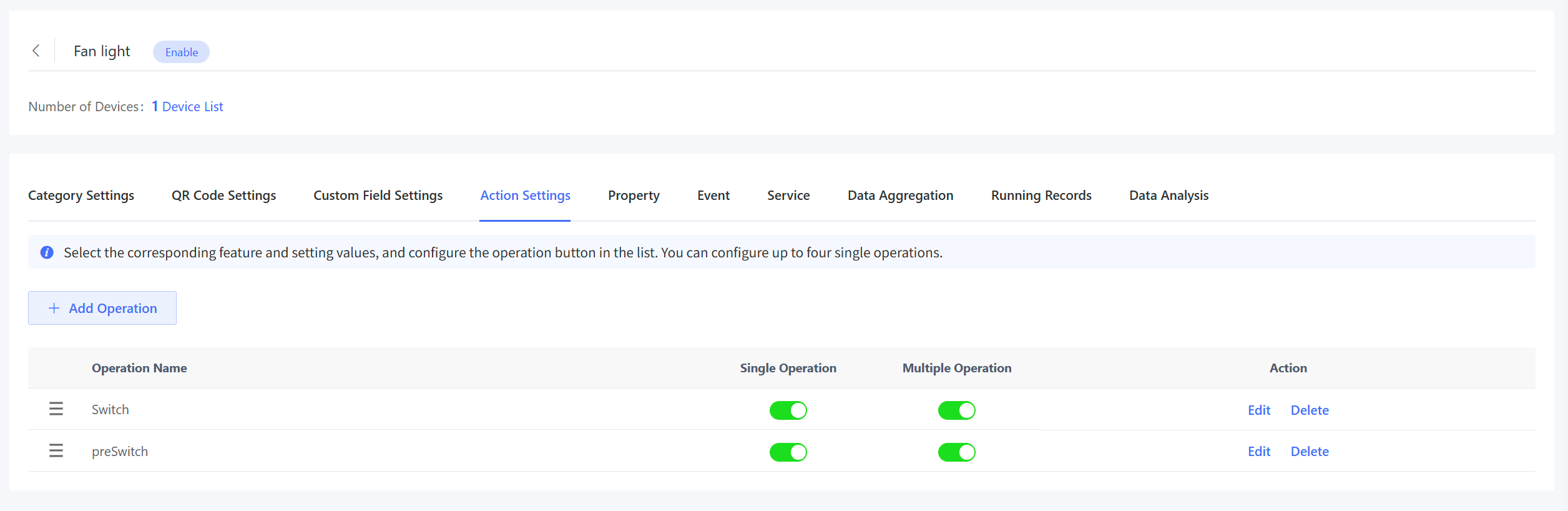
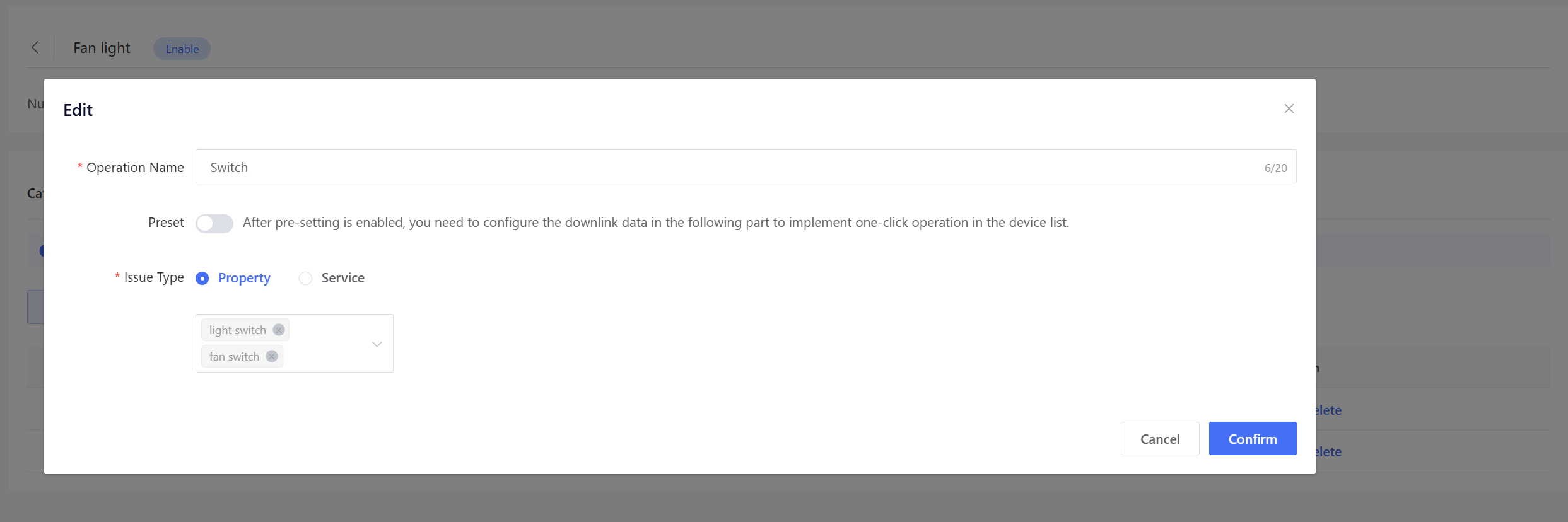
Click “Add Operation” to pop up the window and complete the information. Operation Name: e.g., Fan Switch Preset: If this option is enabled, preset the value to be issued below. If this option is not enabled, a value setting window will pop up when you issue command in device list. The value will then be issued after you set it. Issue Type: Select one or multiple TSL properties/services to be distributed.
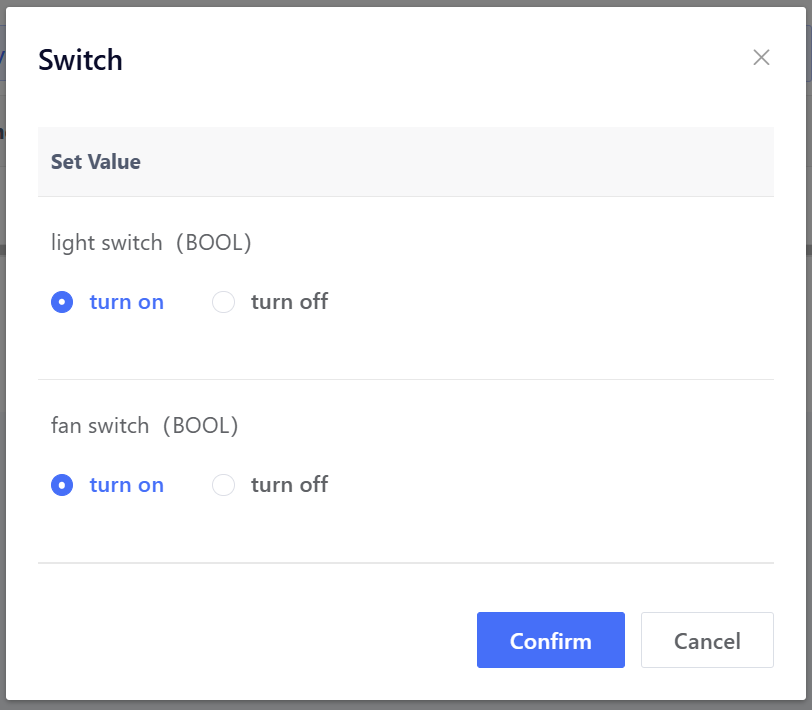
For example, set a switch operation, including a fan switch and light switch.
If you enable “Preset”, preset the value to be issued, so that the preset value will be issued directly when you click the operation in the device list.
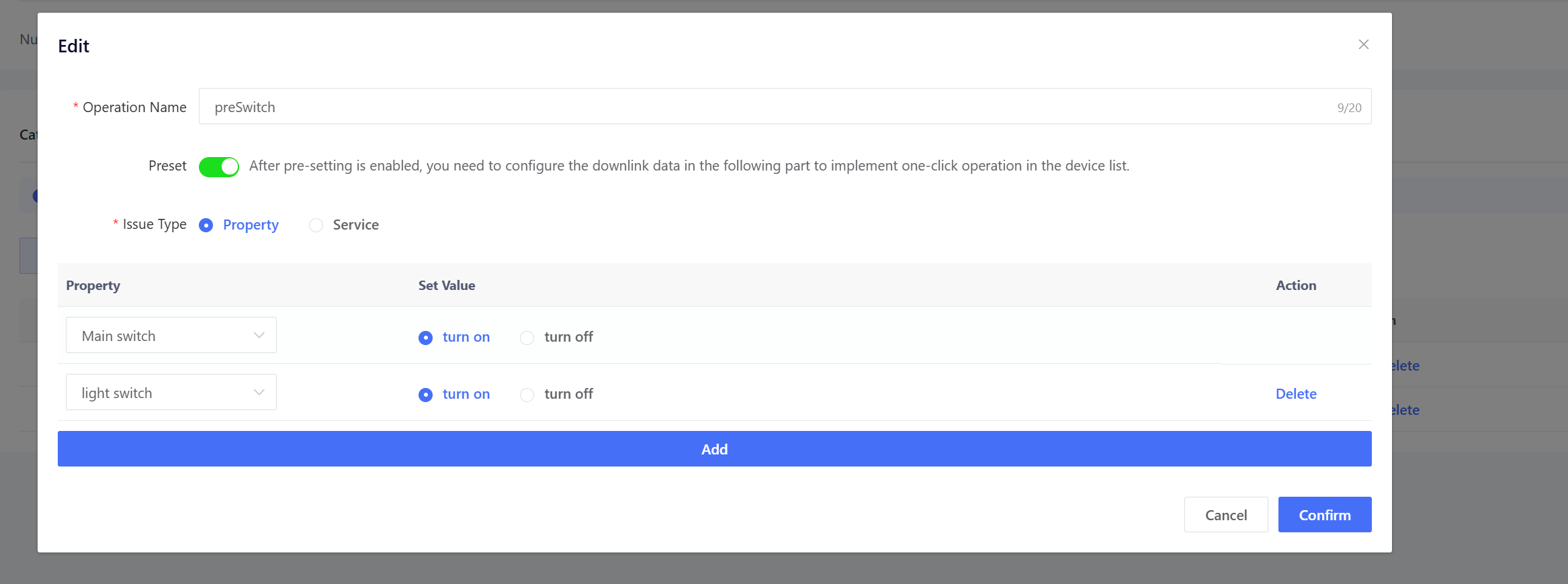
After you click "Confirm", the added operations will be displayed in the operation list. As shown in the following figure, a preset preSwitch and a non-preset Switch are added, both controlling the light switch and fan switch properties.
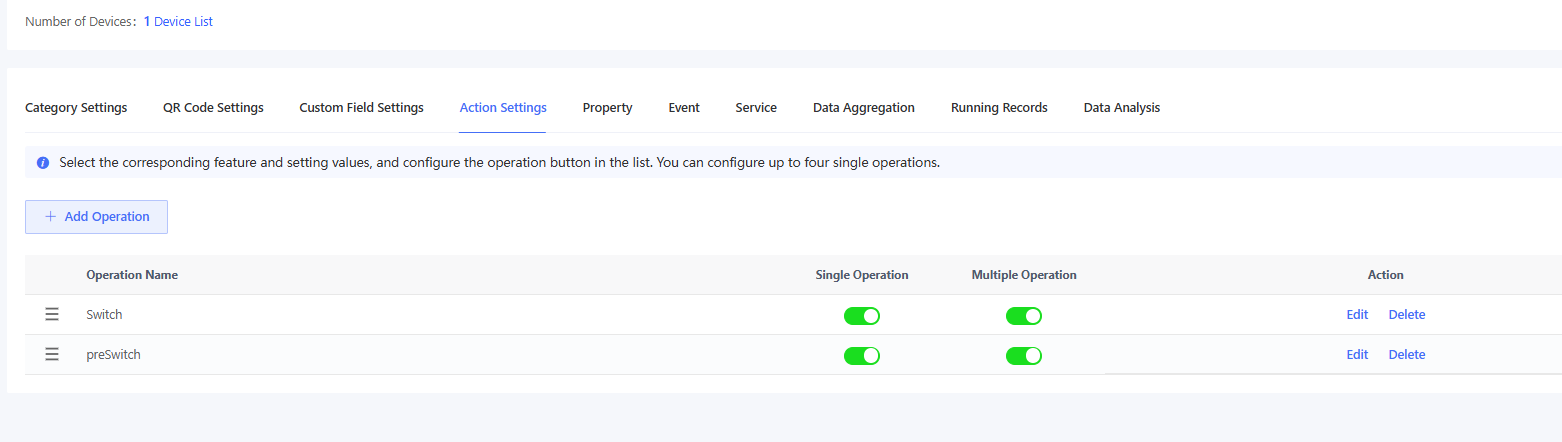
Single Operation: Display the button in the operation column of the device list, for single-device control. Multiple Operation: Display the button above the device list, supporting multi-select batch operations. When both are enabled, you can perform both single and batch operations.
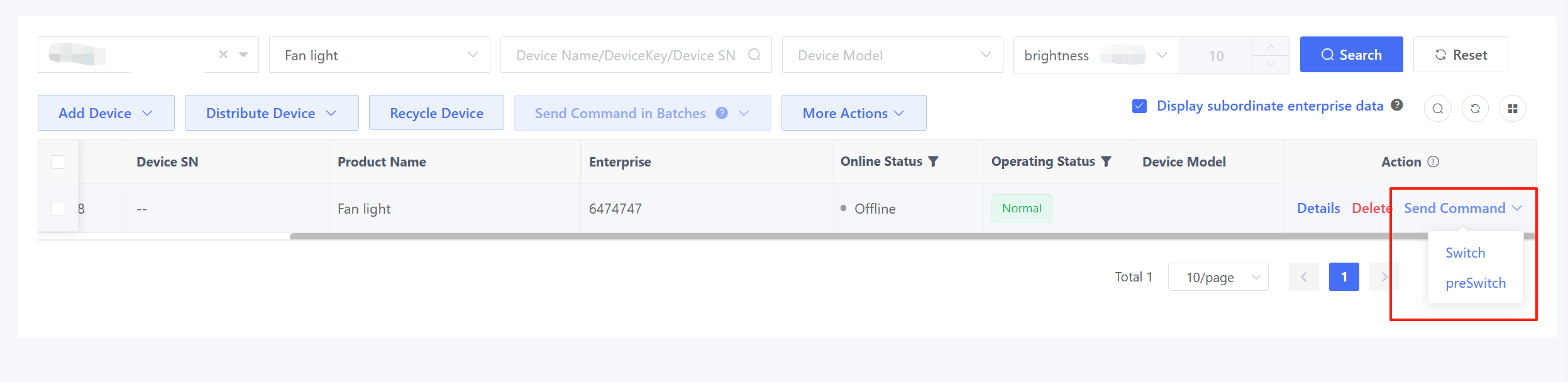
Click the non-preset Switch to pop up a window for setting the value.
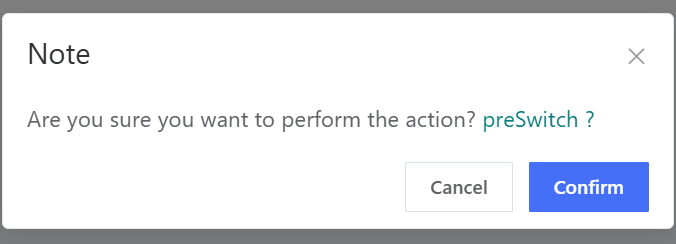
Click the preset preSwitch to pop up a confirmation window before sending the preset value.
For multiple devices, check the desired devices and click the operation button.