5. Device Installation
For devices with fixed installation locations, AMP provides complete workflow for device installation and maintenance.
Typical workflow: After a specific project or installation site is determined, relevant information about the installation site and its associated device information should be recorded accordingly.
5.1 Create/Manage Installation Site
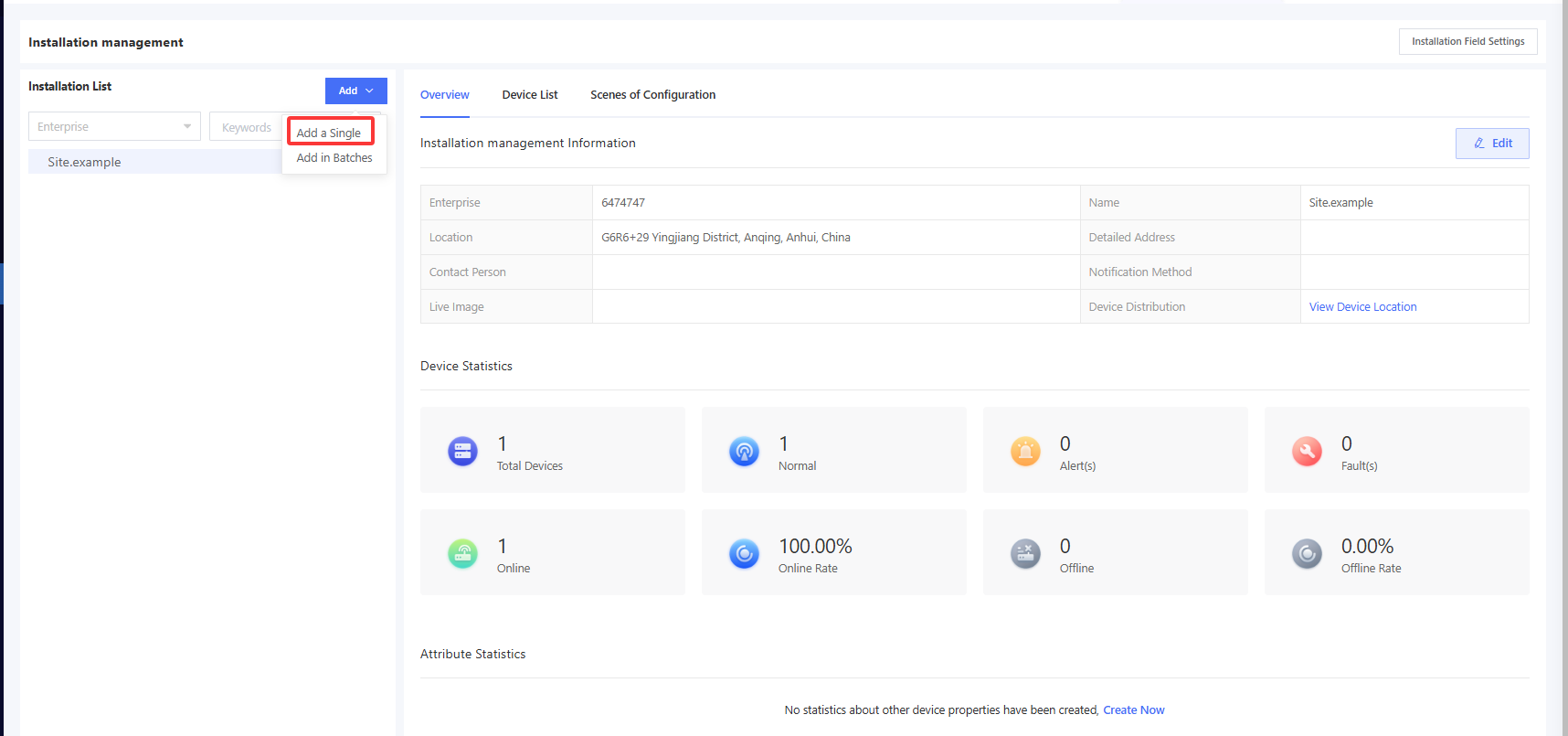
Click “Installation” in the left navigation bar, and click “Add” > “Add a Single” to pop up the “Add Installation Site” window.
Complete the information in the window.
Enterprise: Select the enterprise to which this installation site belongs. Only devices under this enterprise can be bound to the installation site. Name: The name of the installation site. Location + Detailed Address: Specify the exact geographic location of the installation site. Contact person: Select the contact person associated with this installation site. When devices under this installation site generate fault alerts, the selected contact person will be notified. Add the contact person via Alarm - Alarm Contact. Notification Method: Select how the contact person will be notified when a device generates a fault alert. Only email is supported now. Live Image: Upload installation site photos.
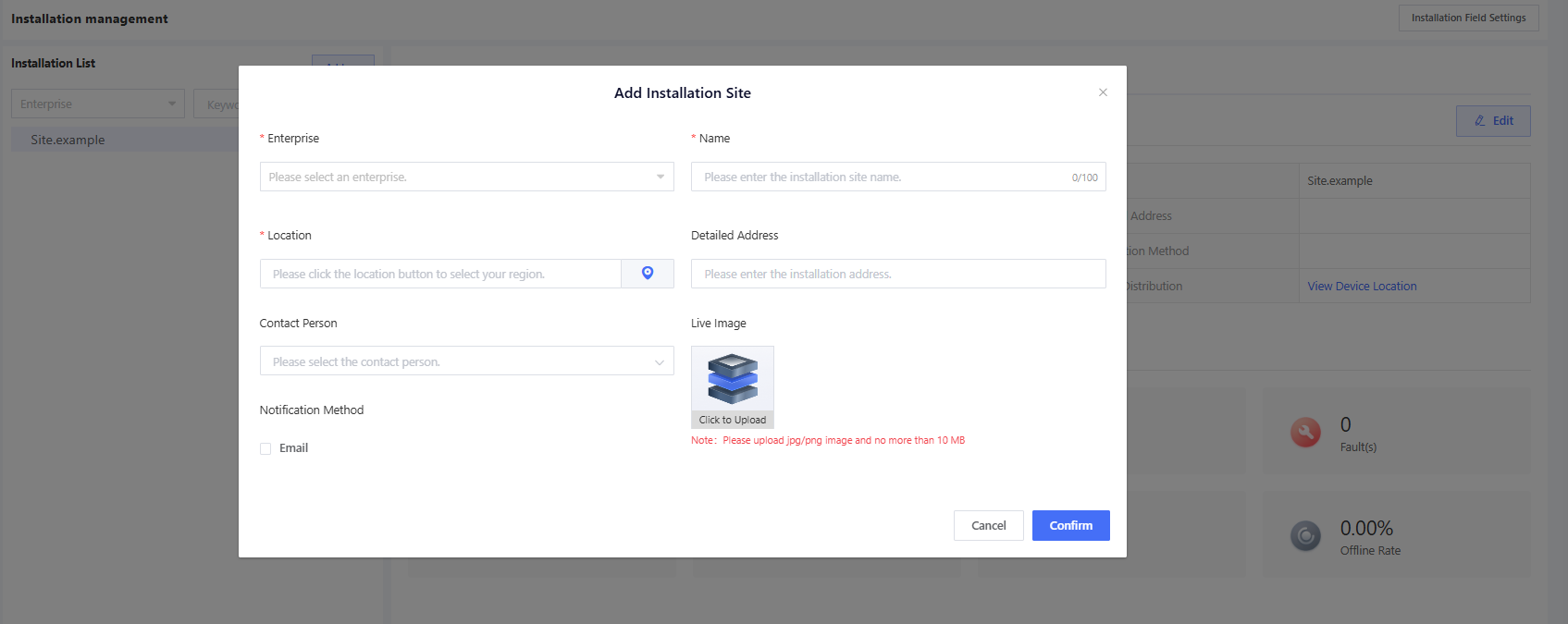
Click “Confirm” to create the installation site. Installation sites can be created hierarchically. For example, you can first create a building-level installation site, and then create floor-level installation sites under it, enabling fine-grained management of projects/installation sites.
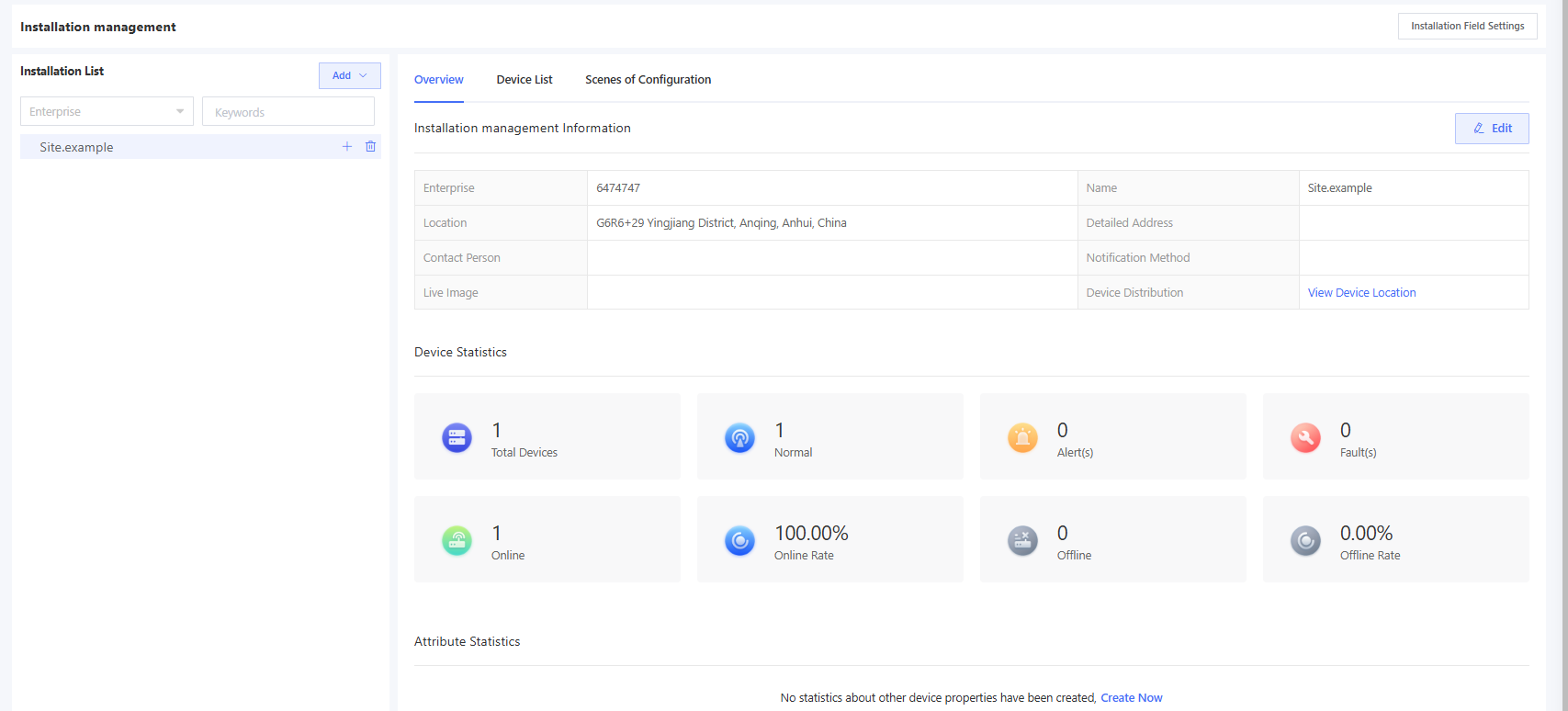
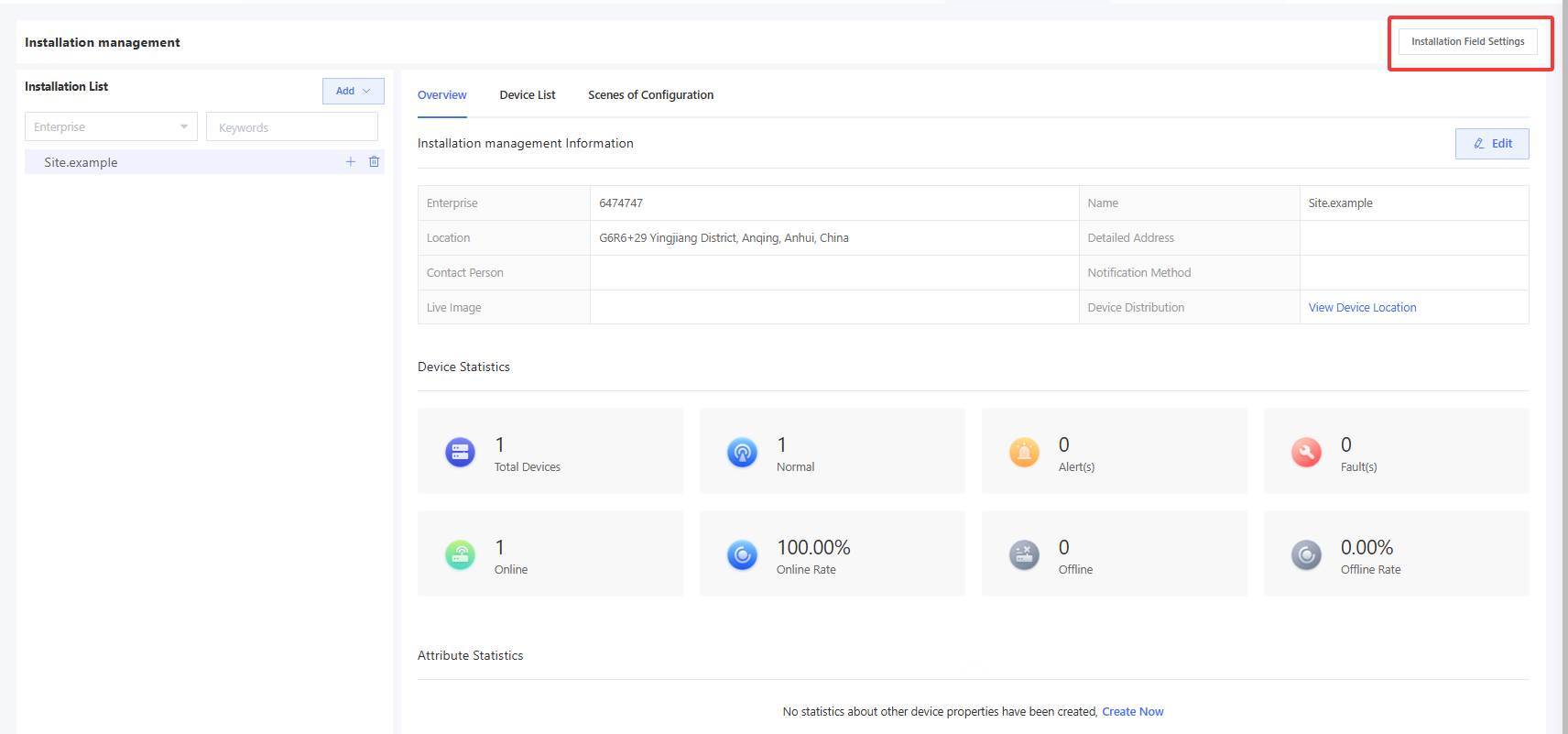
In addition to the default fields listed above, if you want to add custom fields to further identify installation sites, click “Installation Field Settings” to customize additional fields that will be displayed when a new installation site is adde
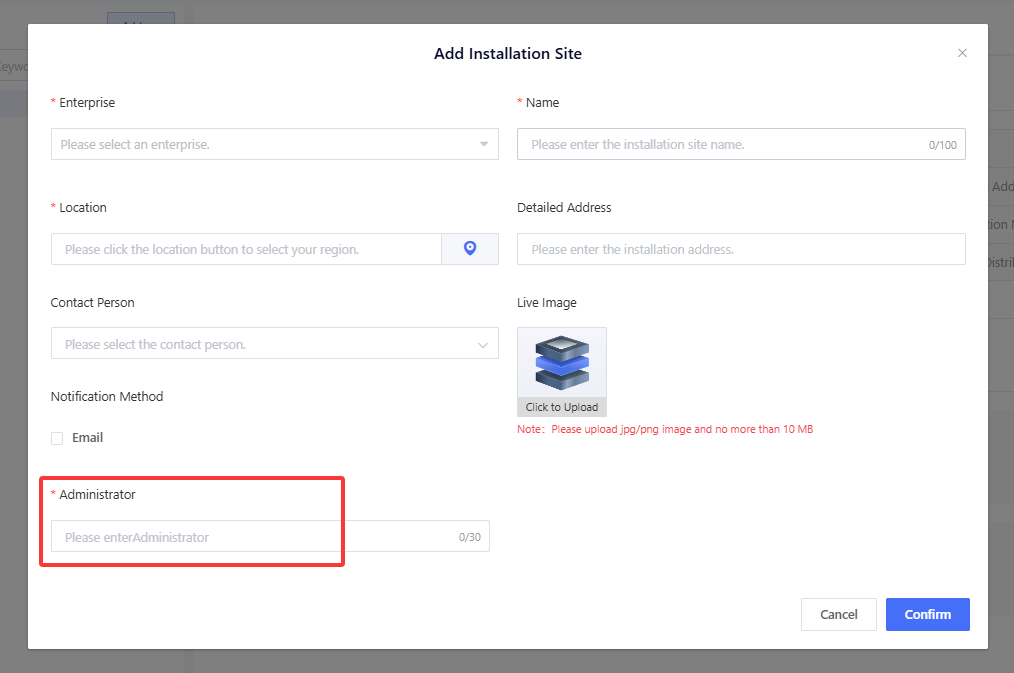
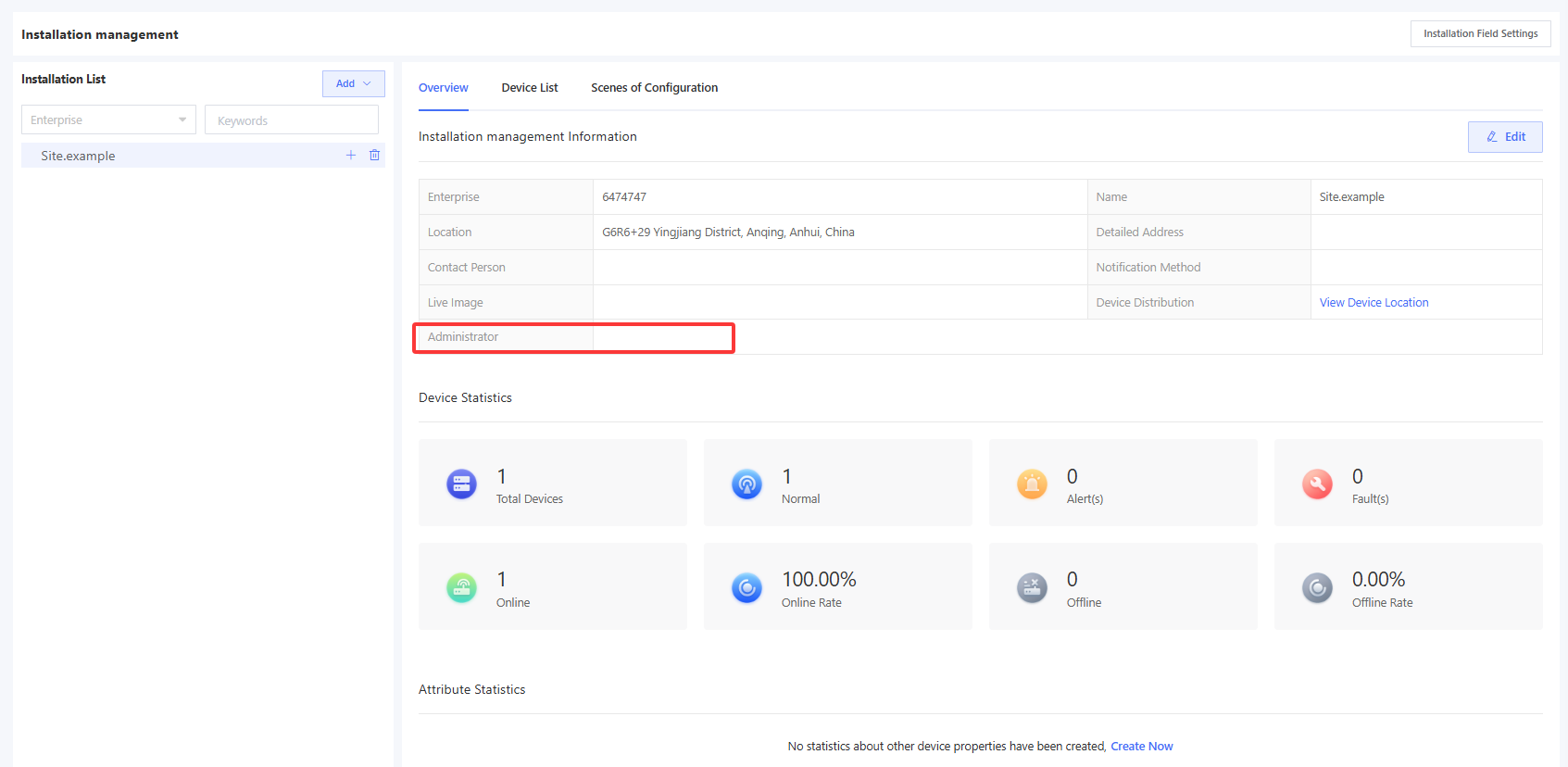
For example, if you want users to be required to enter an administrator when creating an installation site, you can add an “Administrator” field, as shown below.
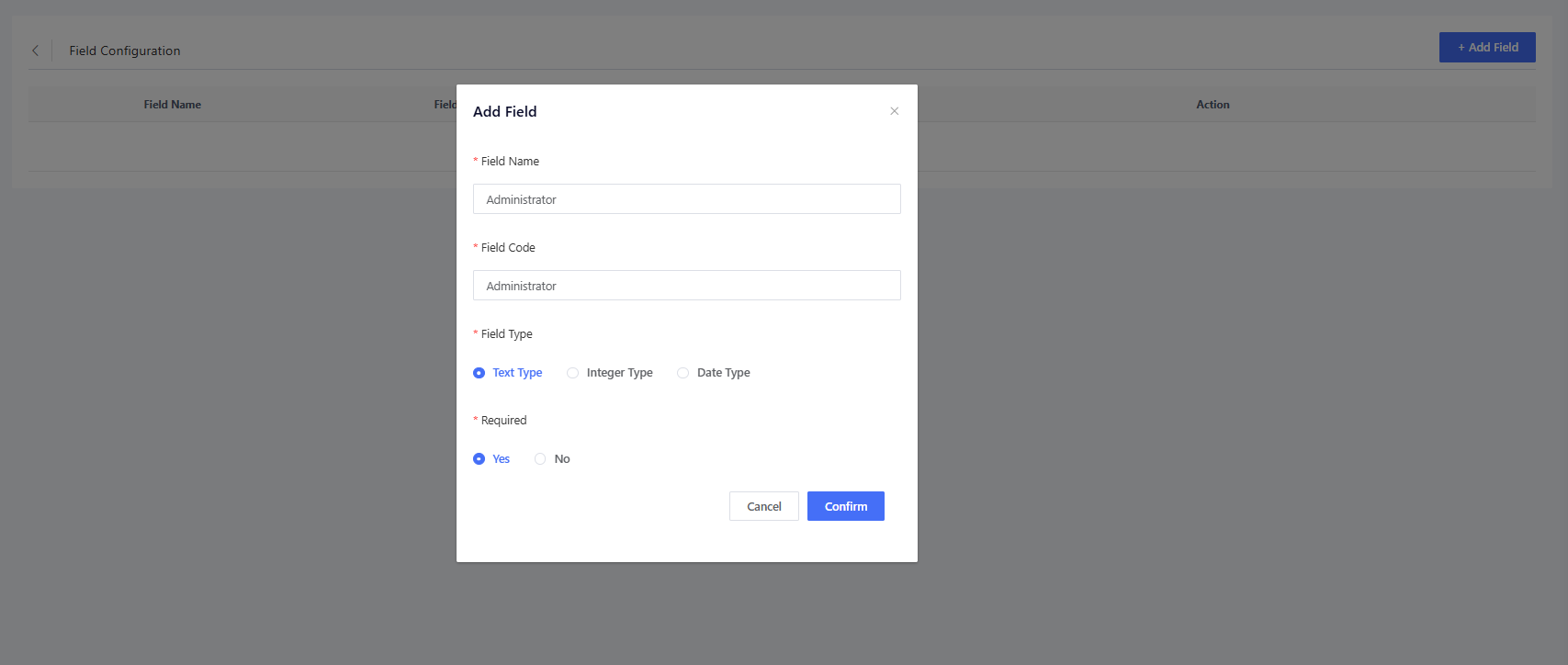
After you add the field, the “Administrator” input box will be displayed in the "Add Installation Site" window, and the entered value will also be visible in the installation site details.