6.5 Report Management
The system provides a customizable report editor, allowing users to define and configure their own report rules. Based on user-defined configurations, the system can automatically generate reports.
6.5.1 Create Report Plan
Go to “Report” > “Schedule” and click “Add” to open the “Add Report Plan” window.
Data Type: “Raw Data” or “Aggregated Data”. “Raw Data” is the original data reported by devices. “Aggregated Data” is statistical data processed by the platform, such as maximum, minimum, average values, etc.
Report Type: Raw data only supports Excel format; while aggregated data supports both Excel and PDF formats.
Statistical Type and Period: Support both periodic cyclic statistics on a daily/weekly/monthly basis (e.g., daily/weekly/monthly reports) and custom time based statistics for a specific period.
- Periodic Cyclic Statistics: Reports are generated the day after each cycle ends.
- Custom Time Based Statistics: If the configured end date is earlier than the current date, the report will be generated the next day. If the configured end date is later than the current date, the report will be generated the day after the end date. Earliest selectable date: 5 years before today. Latest selectable date: 1 year after today. Maximum time range: 3 years.
Reports can be retained for either 7 days or 30 days. Beyond the retention time, the system will automatically delete the reports, and the report cannot be downloaded any longer.
Product and Device: A product must be selected, but device selection is optional. If no device is selected, the report includes all devices under the selected product. If one or more devices are selected, the report includes only those devices.
A. Raw Data Report
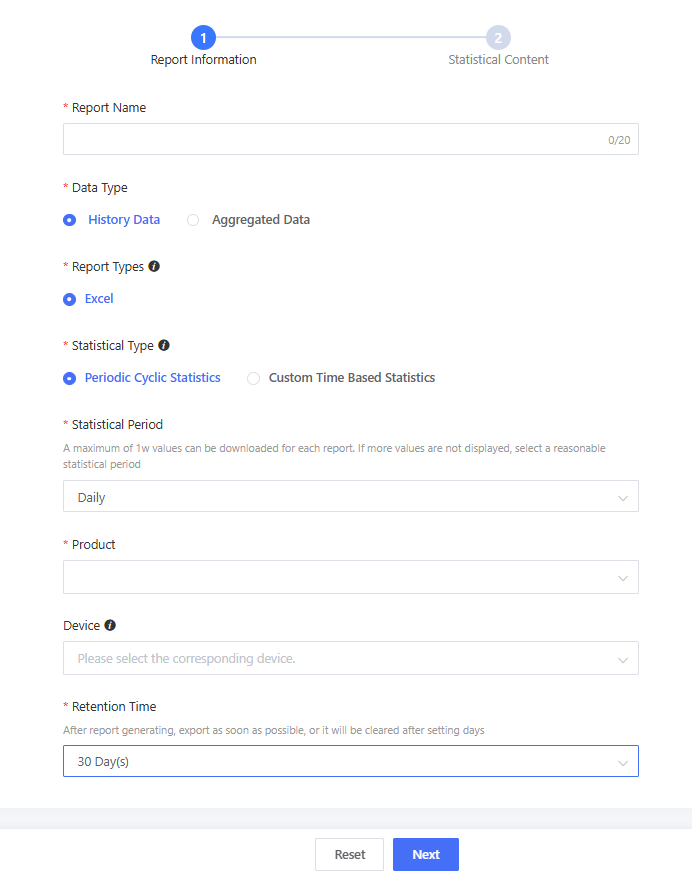
For example, create a daily raw data report for charging piles. Data Type = Raw Data Report Type = Excel Statistical Type = Periodic Cyclic Statistics -Daily Product = Charging Pile Retention Time = 7 or 30 days
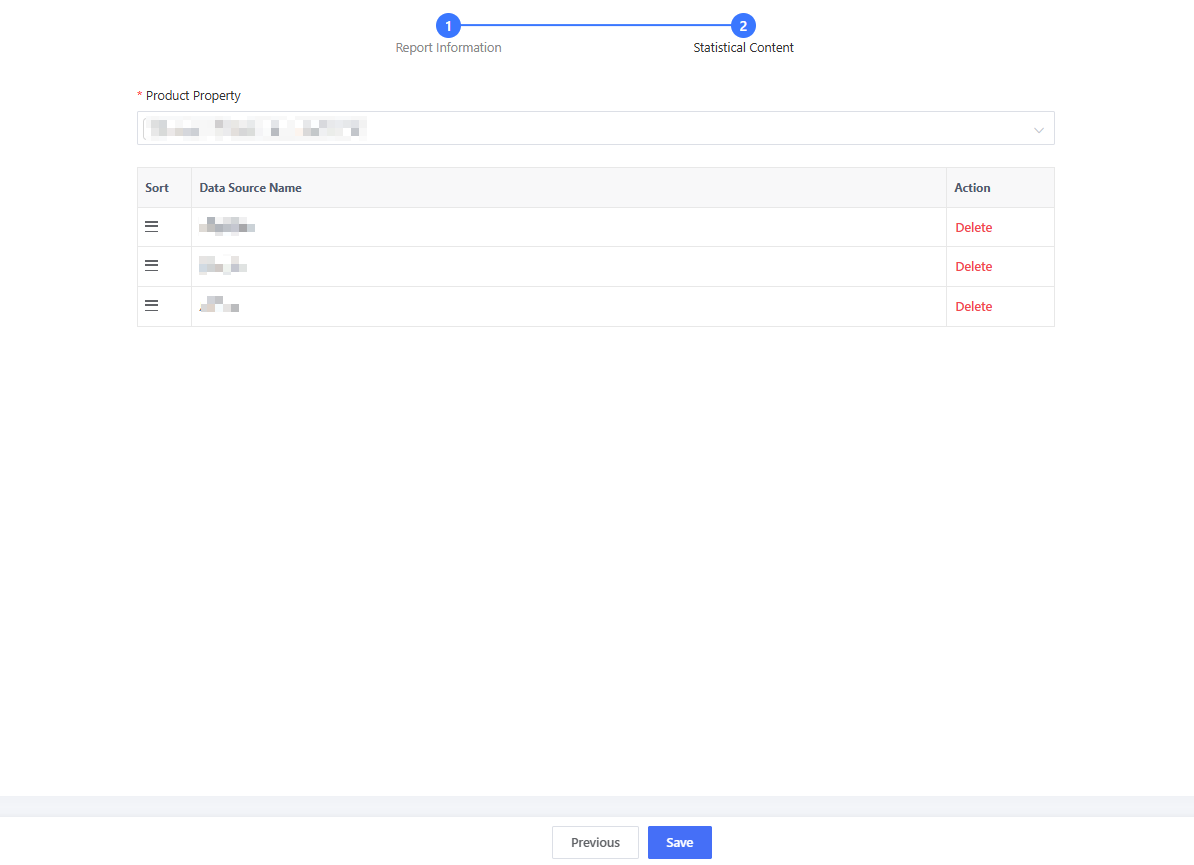
Click “Next” to proceed to the “Statistics Content” page. Select the TSL model features you want to include in the report. After confirmation, save the report plan. By default, the report plan is enabled after creation. You can create up to 5 report plans simultaneously.
B. Aggregated Data Report
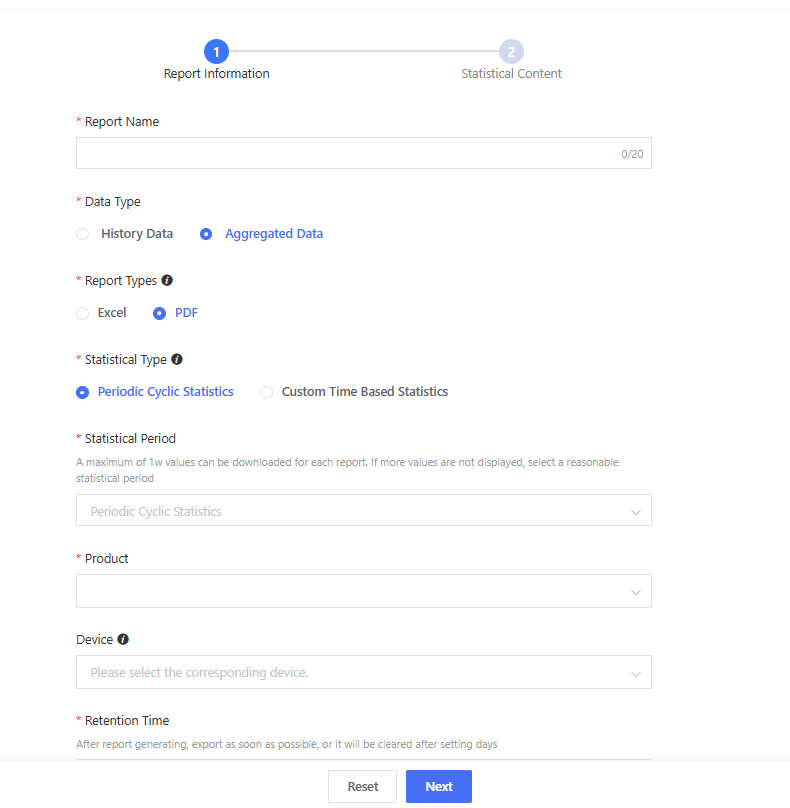
For example, create a monthly aggregated data report for charging piles. Data Type = Aggregated Data Report Type = Excel or PDF Statistical Type = Periodic Cyclic Statistics - Monthly Product = Charging Pile Retention Time = 7 or 30 days
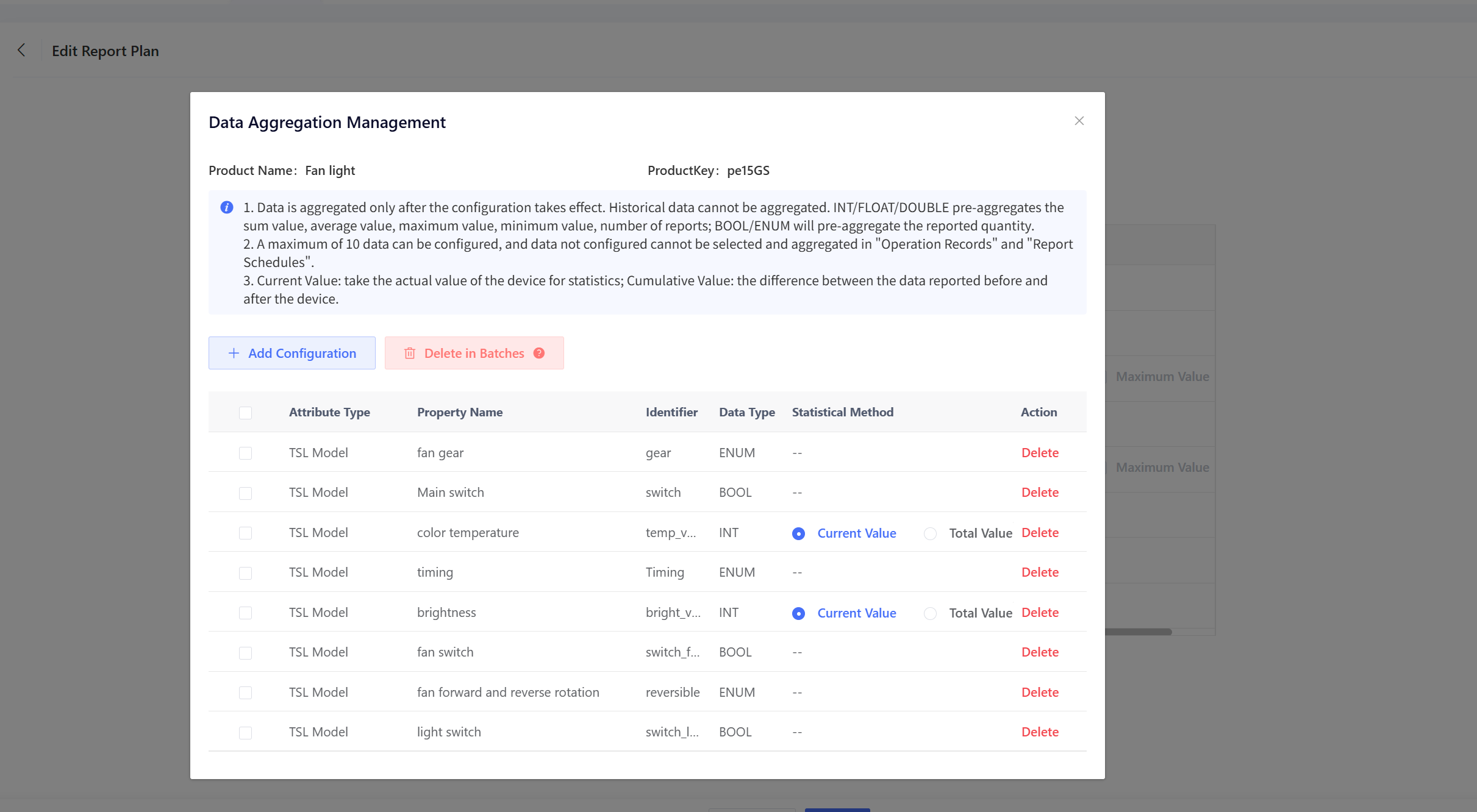
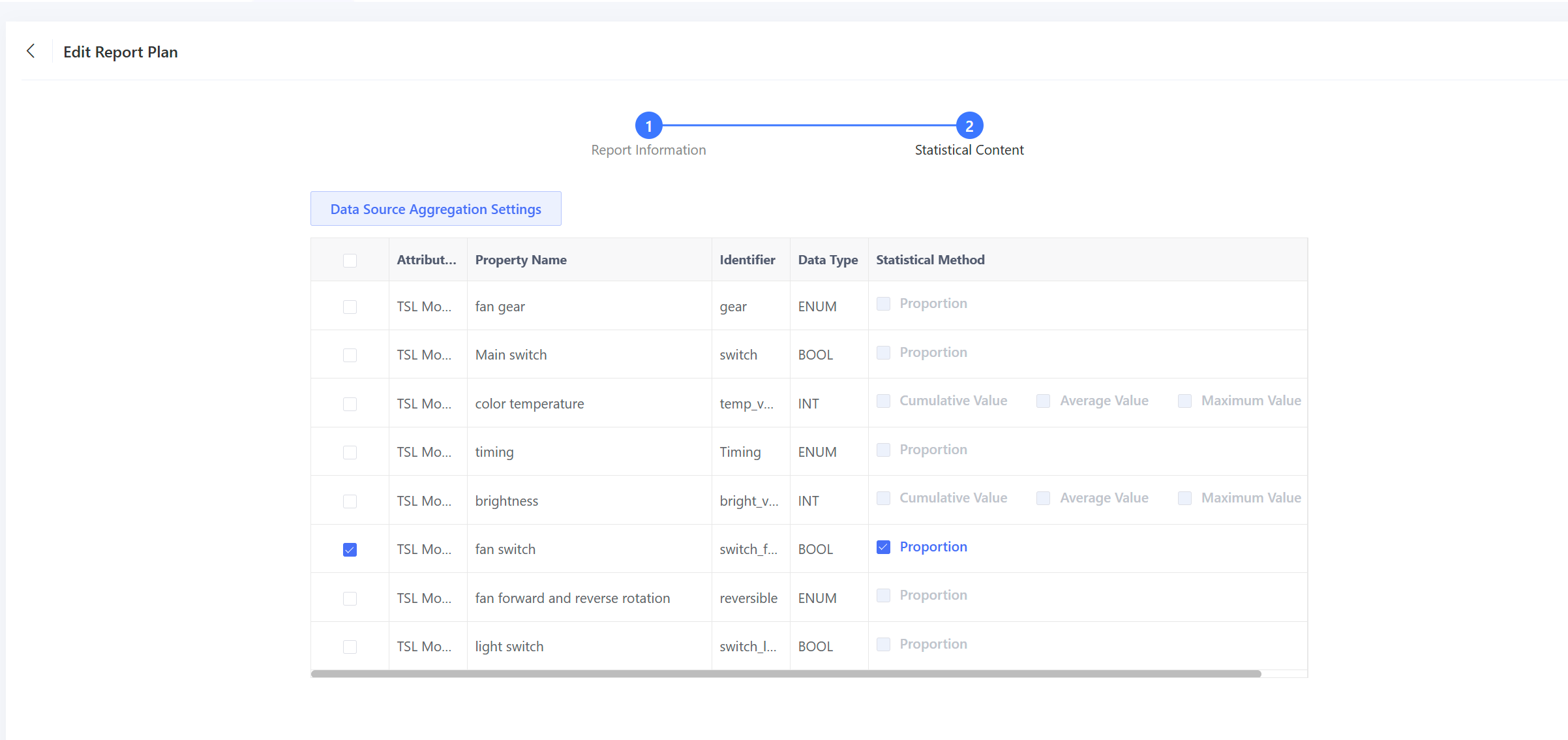
Click “Next” to proceed to the “Statistics Content” page. Select the pre-configured aggregation data sources. If none are available, click “Data Source Aggregation Settings”. For configuration details, please refer to Product Configuration - Data Aggregation. Different data types support different aggregation methods. For INT, FLOAT, DOUBLE, and business properties, you can choose from cumulative, average, maximum, or minimum value (based on the current value or total value type configured in the aggregation settings). For BOOL and ENUM properties, you can choose to display the proportion (percentage distribution).
- Cumulative Value: Total accumulated value during the reporting period.
- Average Value: Average of the reported values during the period.
- Maximum Value: Maximum value reported during the period.
- Minimum Value: Minimum value reported during the period.
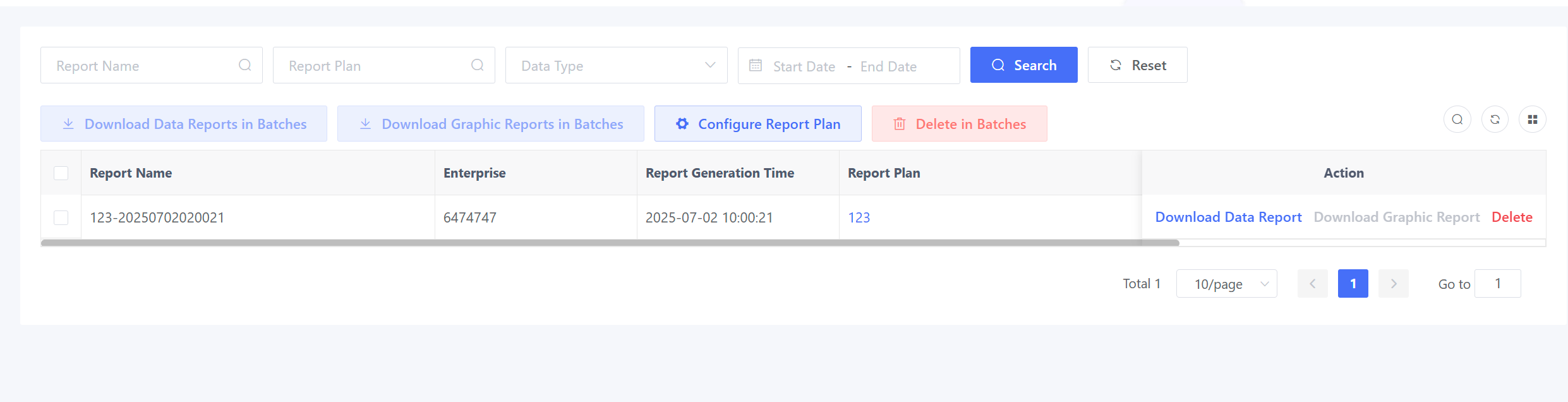
After confirming your selections, save the report plan. You can then view the auto-generated reports in the “Data Report” menu.
6.5.2 View Report
Periodic cyclic statistics reports are generated the day after each cycle ends. If you select daily statistics, reports will start being generated the day after the report plan is created.
For custom time based statistics reports, if the configured end date is earlier than the current date, the report will be generated the next day. If the configured end date is later than the current date, the report will be generated the day after the end date. For example, if you want to create a report with a custom time range from 2025-05-16 to 2025-05-21 on 2025-05-22, the corresponding report will be generated on 2025-05-23; if you want to create a report with a custom time range from 2025-05-16 to 2025-05-23 on 2025-05-22, the corresponding report will be generated on 2025-05-24.
You can view and download reports on the “Data Report” page.